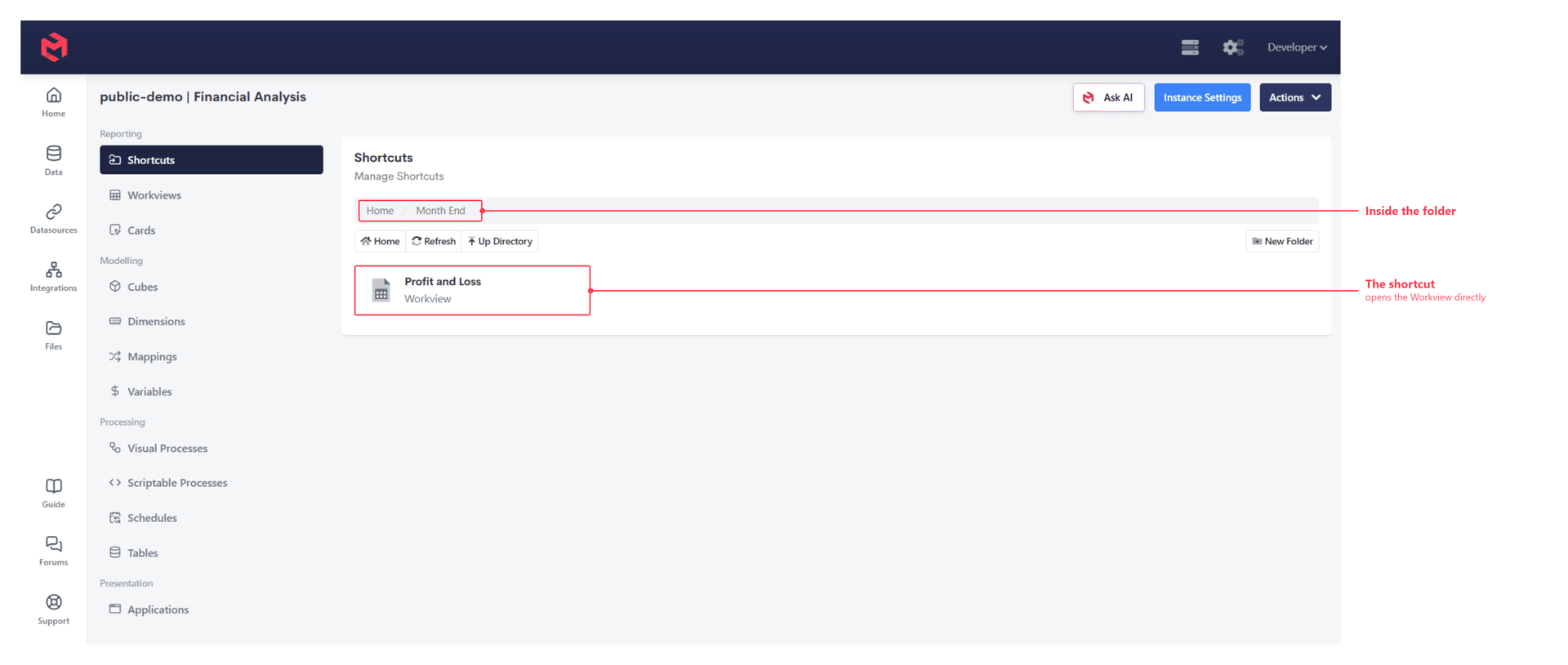
Shortcuts
Shortcuts let you organise model objects into folders, independent of where those objects actually live in the model. They're most useful for grouping a set of tasks that belong together operationally but span different object types - a month-end close, for example, might involve updating a Workview and then running a Process. A Shortcuts folder can group both together under "Month End," even though a Workview and a Process otherwise live in entirely different sections of the model.
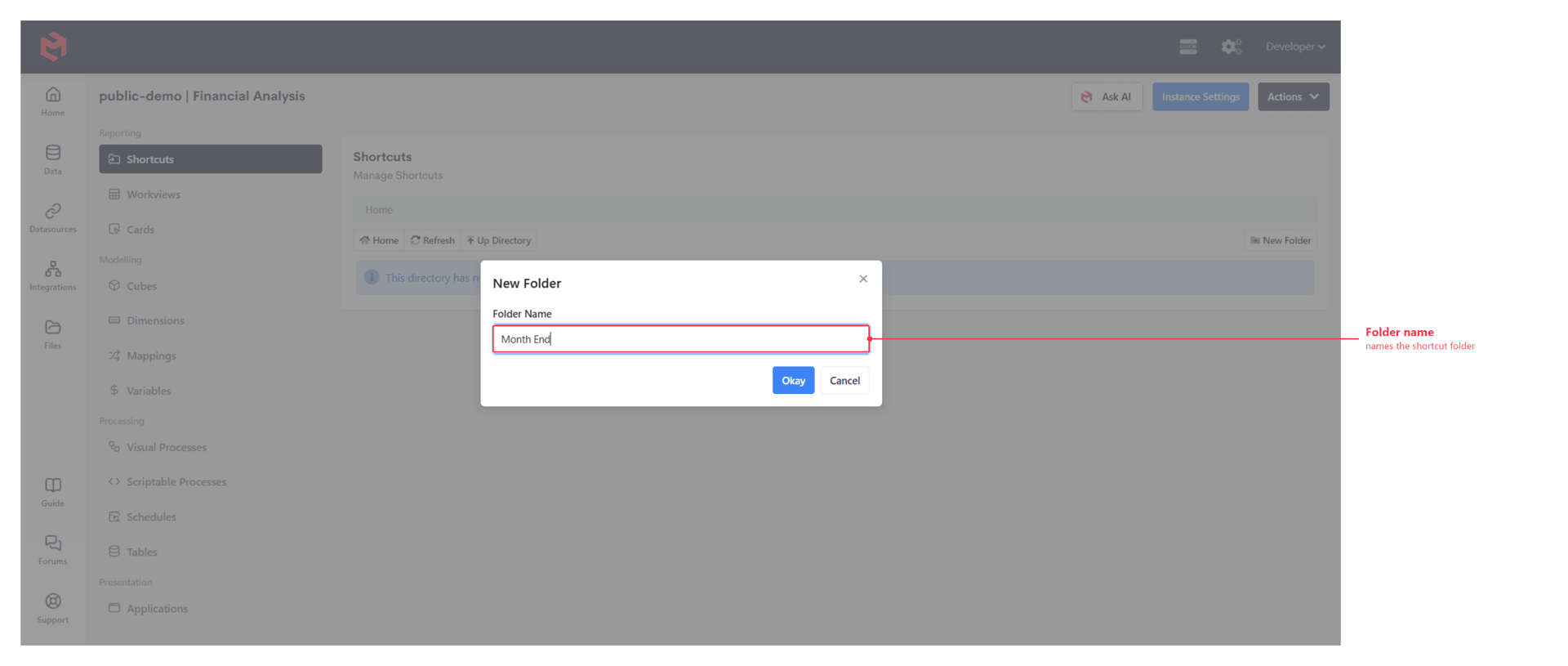
Creating a folder
Open Shortcuts (under Reporting in the model's navigation panel), then click New Folder.
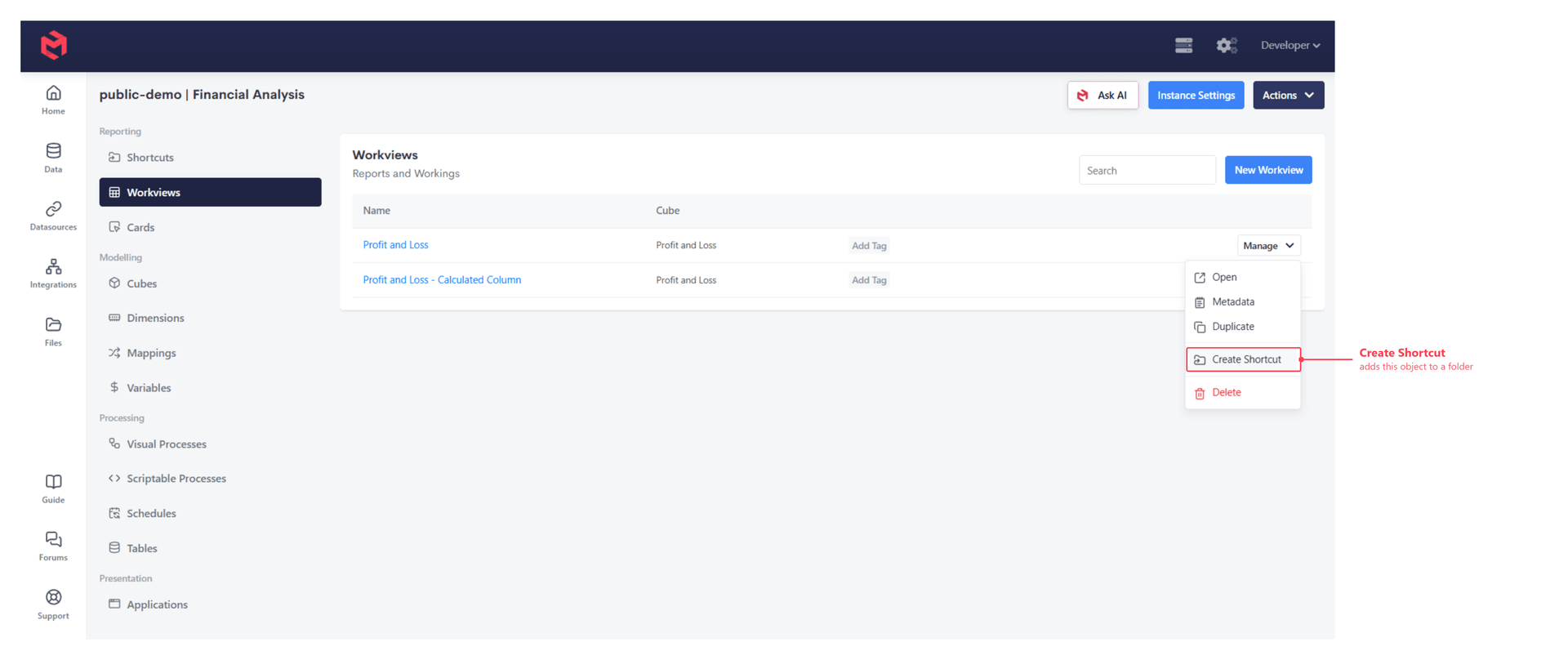
Adding an object to a folder
From the object's own list (Workviews, Processes, Cards, and so on), open its Manage menu and choose Create Shortcut.
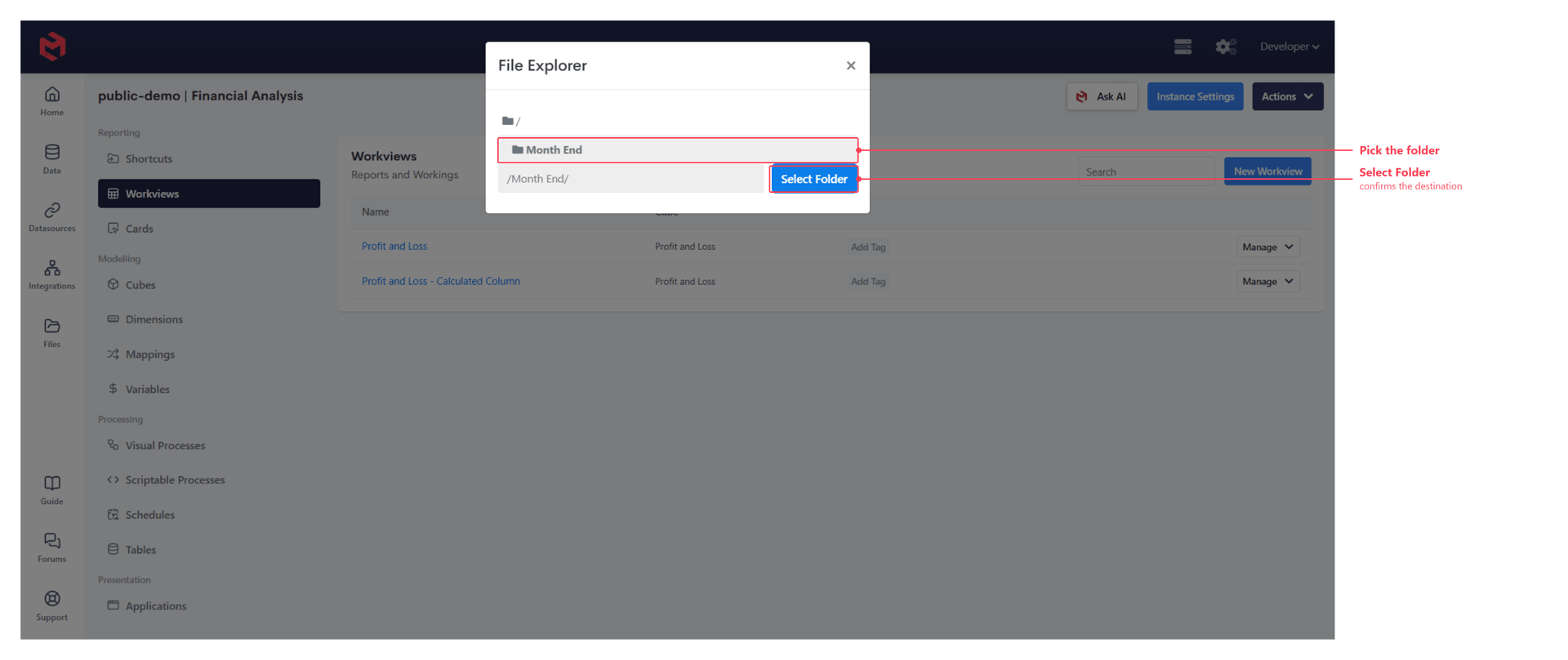
This opens a File Explorer for picking which Shortcuts folder the object should be placed in.
Using a folder
Back in Shortcuts, the folder lists every object added to it, regardless of type - a Process and a Workview can sit side by side in the same folder if that's how the underlying task is organised.