
How to run a process
A Process can be run by hand from the Gateway whenever you need it. This page covers that route; other ways to run a process are listed at the end.
1. Open the Model
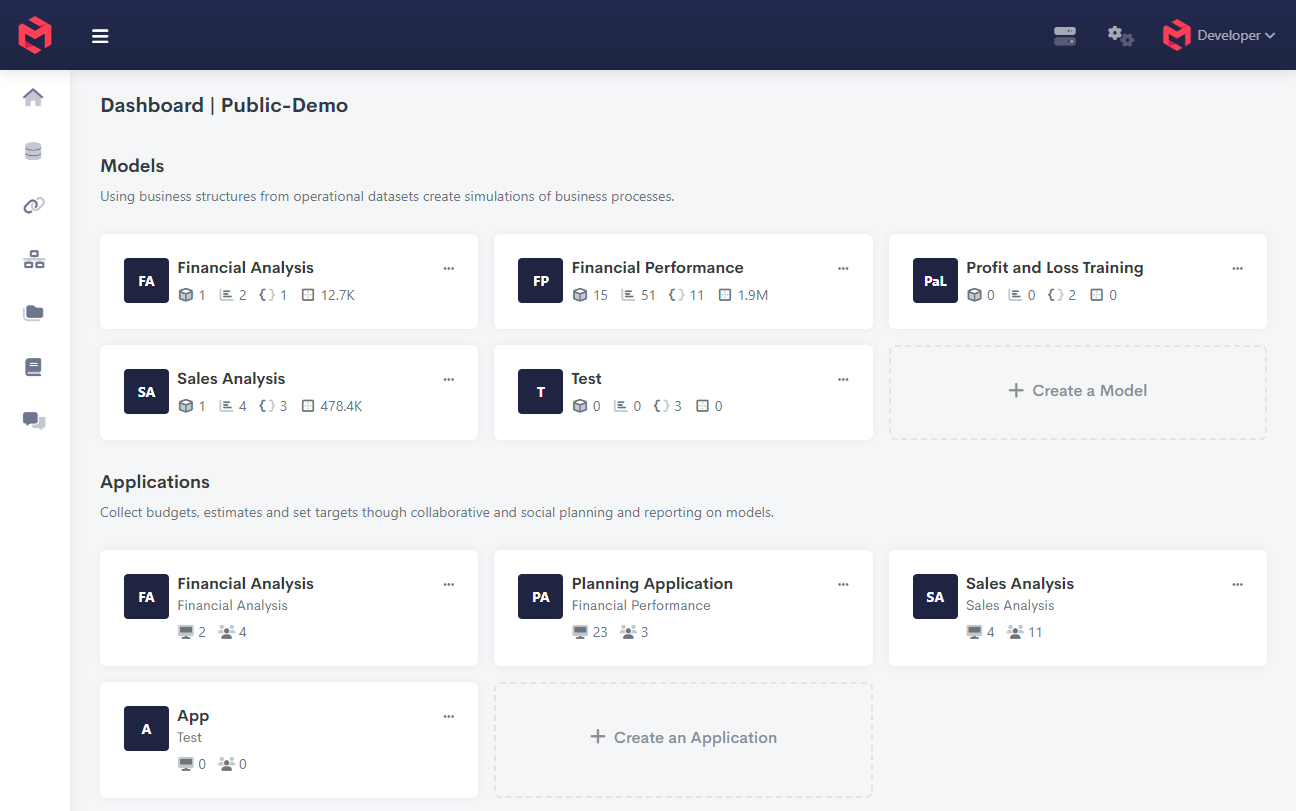
From the instance home page, select the Model that holds the Process.
2. Find the Process and execute it
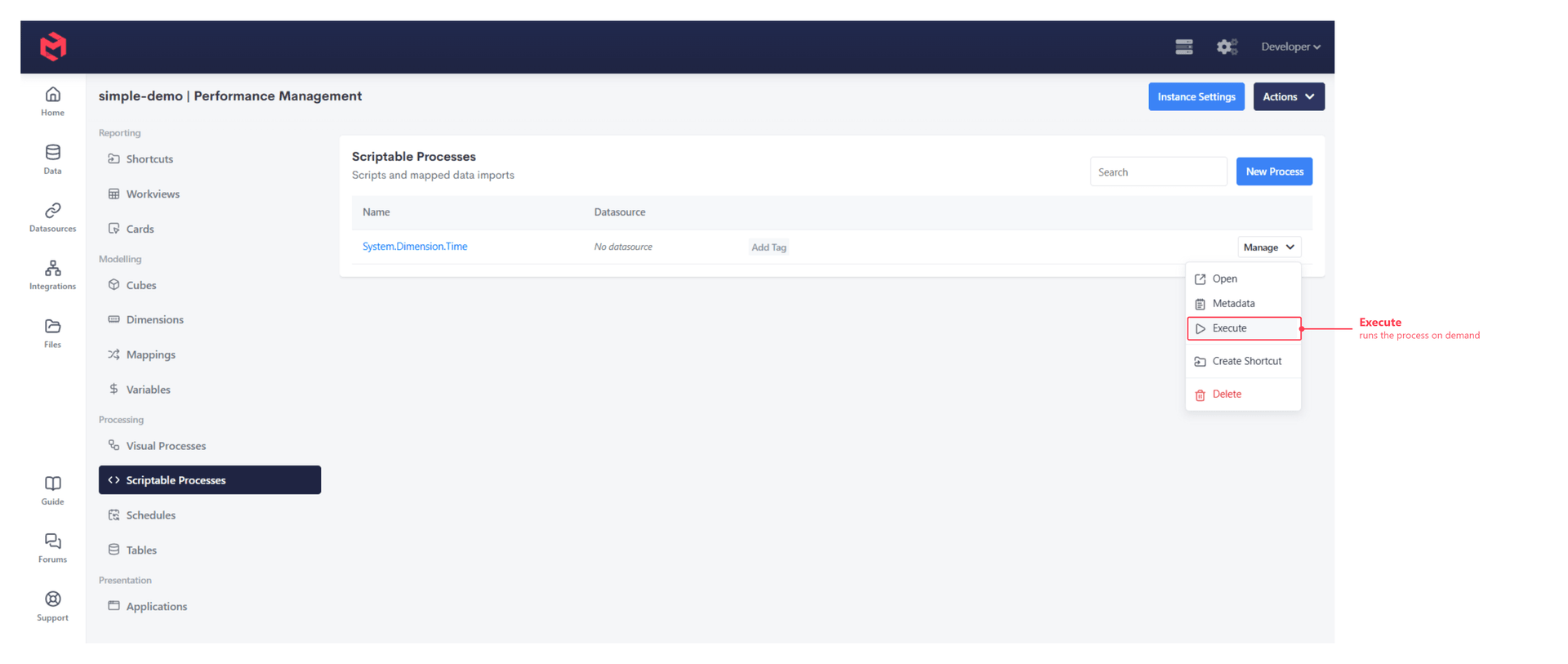
Under Processing, select Scriptable Processes or Visual Processes, depending on which kind the Process is. Each one is listed with its Datasource, if it has one. Open the Manage menu on the row you want and choose Execute.
3. Confirm the execution
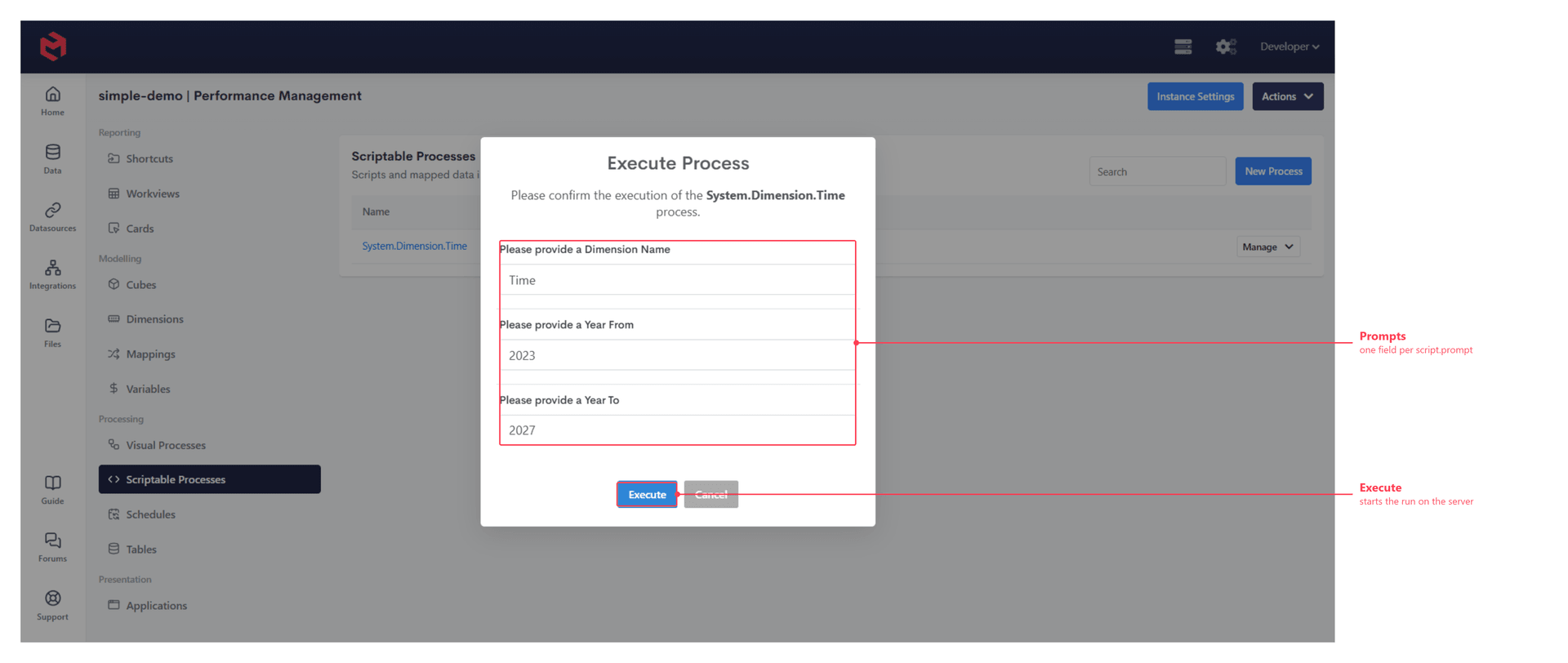
The Execute Process dialog asks you to confirm, and shows a field for every input the Process needs. Fill in the form and click Execute.
Inputs appear because the Process asks for them with script.prompt - a plain prompt becomes a text box, and one carrying a list of values becomes a dropdown. If the Process has no prompts, the dialog is just a confirmation.
4. Review the run
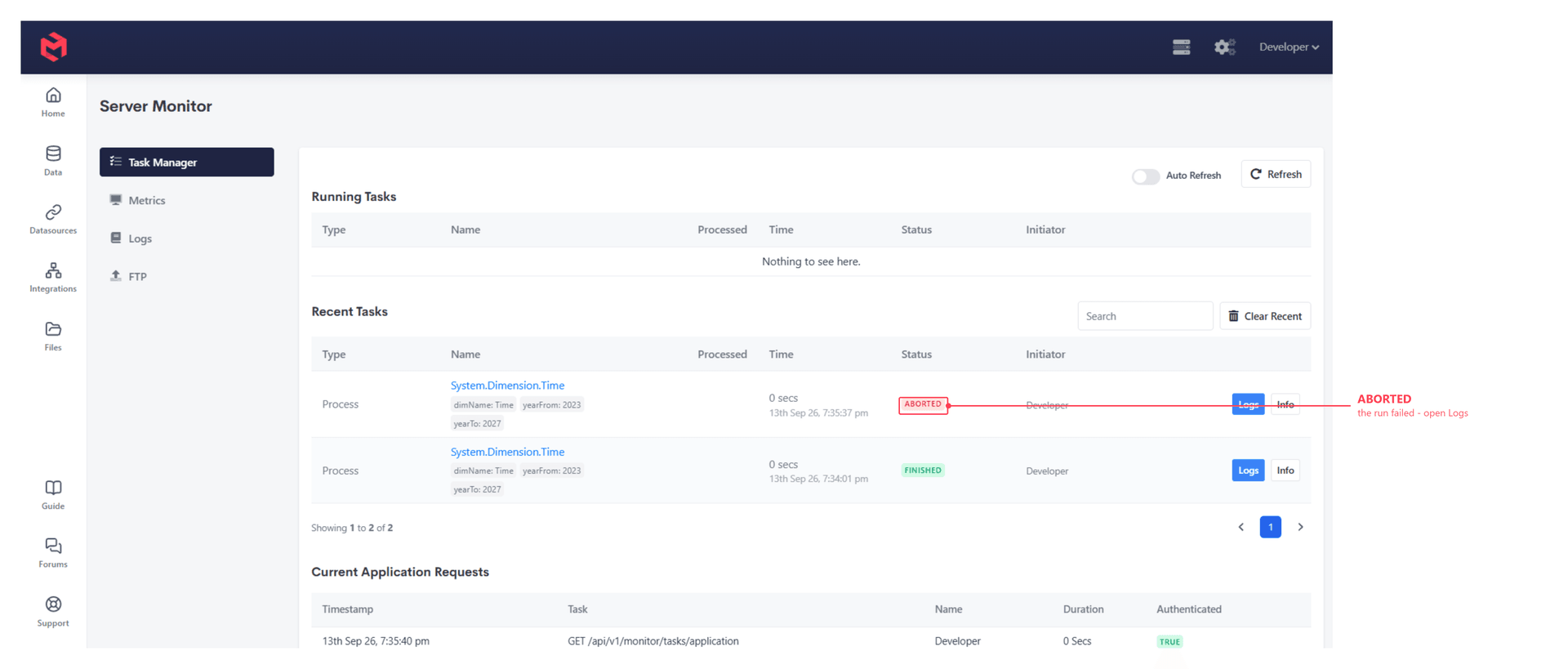
The Process runs on the server, so you don't wait on the dialog. Open Logs in the primary menu to reach the Server Monitor, where the Task Manager lists the run - under Running Tasks while it's going, then Recent Tasks with its duration and status.
The answers given to the prompts are shown against the task itself, so you can tell at a glance which run used which inputs.
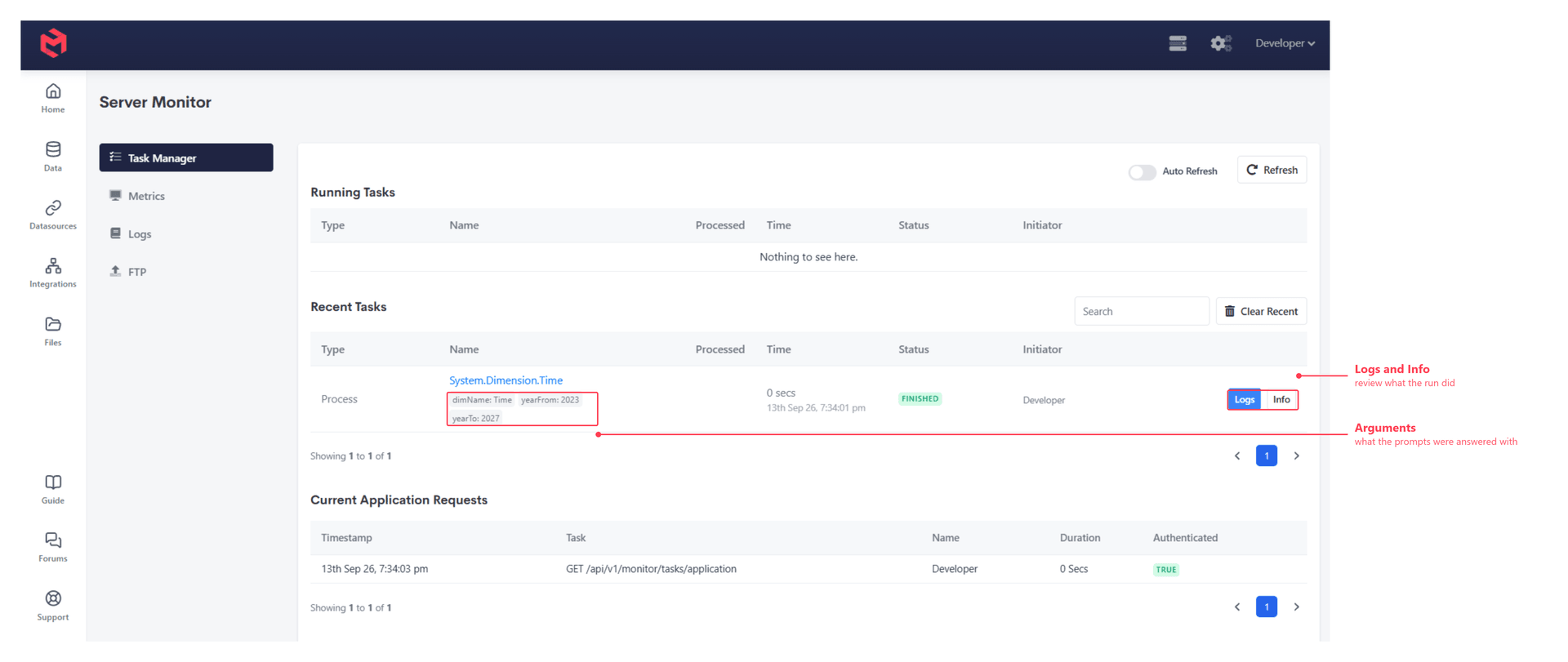
Each task row carries two buttons.
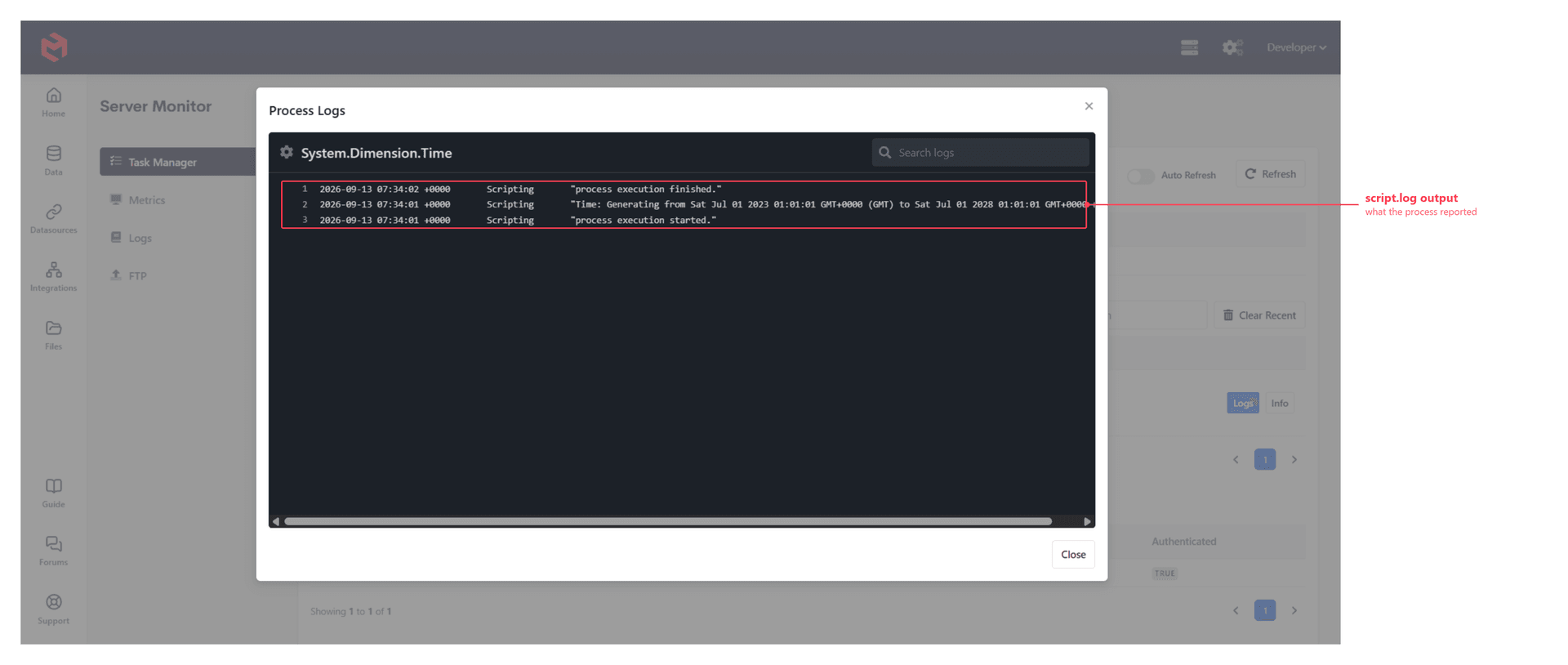
Logs - what the Process reported
Logs opens the output the Process wrote with script.log, newest line first, with a search box for long runs. This is where a Process explains itself - which is why it's worth instrumenting one, as Logging within a Process covers.
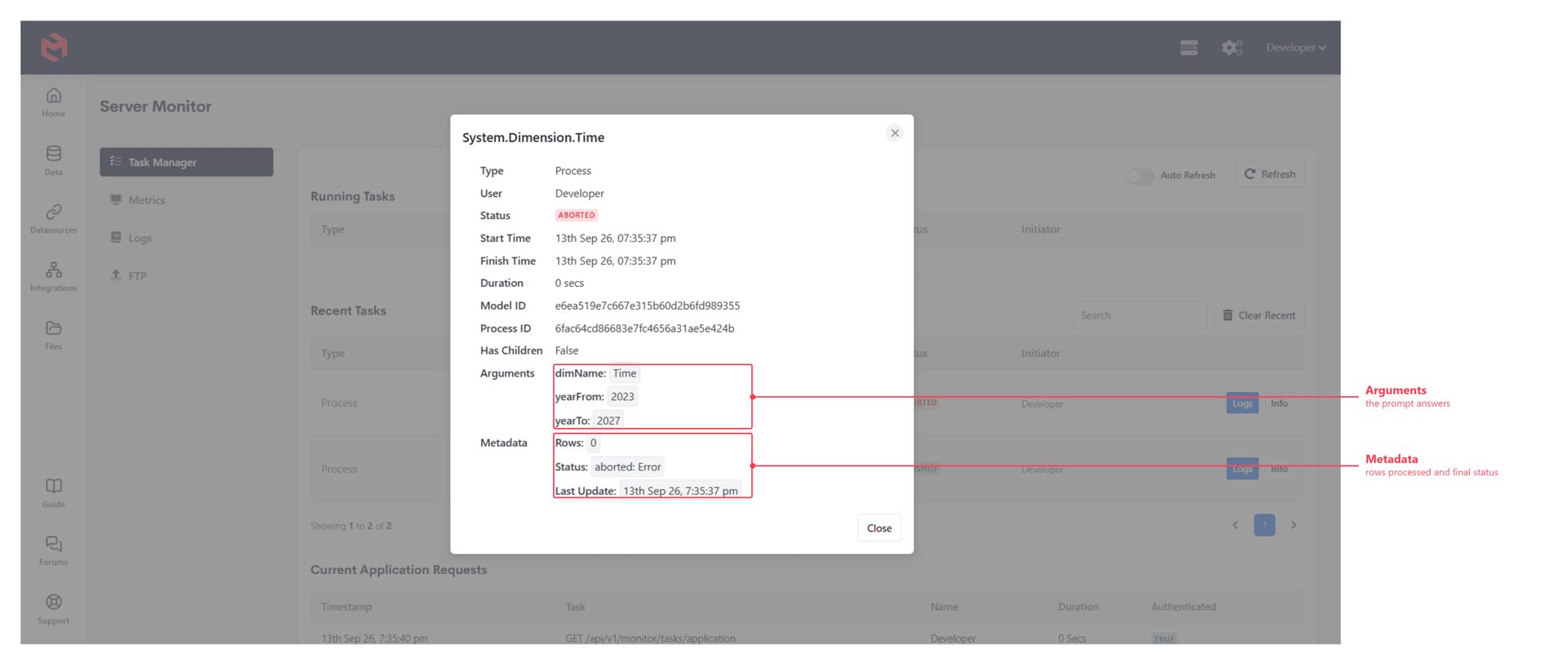
Info - how the run was invoked
Info shows the run's record: who started it, start and finish times, duration, the Model and Process IDs, and the Arguments it was given - the prompt answers again, in full. Metadata below them reports rows processed and the final status.
Check the status before the numbers
A task that finished far quicker than usual has normally exited early on an error. FINISHED means the Process ran to completion; ABORTED means it stopped. Open Logs on an aborted task to see the line it failed on, and Info to confirm which arguments it was running with.
Logs and Monitoring covers the rest of the Server Monitor.
Other ways to run a process
| Route | Use it for |
|---|---|
| Schedules | Running the Process automatically on a recurring basis. |
| Card buttons | Letting an end user trigger the Process from an Application. |
| Excel add-in | Running a Card, and the Process behind it, from a worksheet. |
| Integrations | Triggering the Process from an external system. |
Related
- Creating Processes - building the Process in the first place
- Using Process Prompts - how the input fields in the dialog are defined
- Logging within a Process - making a Process report what it did
- Logs and Monitoring - the Server Monitor in full