
Linking Cubes Using Formula
Cube data can flow from one cube to another using Formula. The key functions for this are the LINK and LINKBY functions.
| Function | Description |
|---|---|
| LINK | The link function returns data from a specified cube at a relative location. If common dimensions exist, they can be excluded entirely from the relative location argument. Syntax: LINK("SourceCubeName", ["Element 1", "Element N"]) Example: LINK("Travel Spend", [ "Total International Spend", "All Trips"]) |
| LINKBY | The linkby function us used when retrieving values based on another value held in this cube. The initial two arguments are the same as the link function. The third argument is the relative location of the value to assist in locating a destination cell in the source cube. Syntax: LINKBY("SourceCubeName", ["Element 1", "Element N"], ["MappedValueStringLocation"]) Example: LINKBY("Travel Rates", ["Flight Costs"], ["Destination"] |
Example of using the LINK function
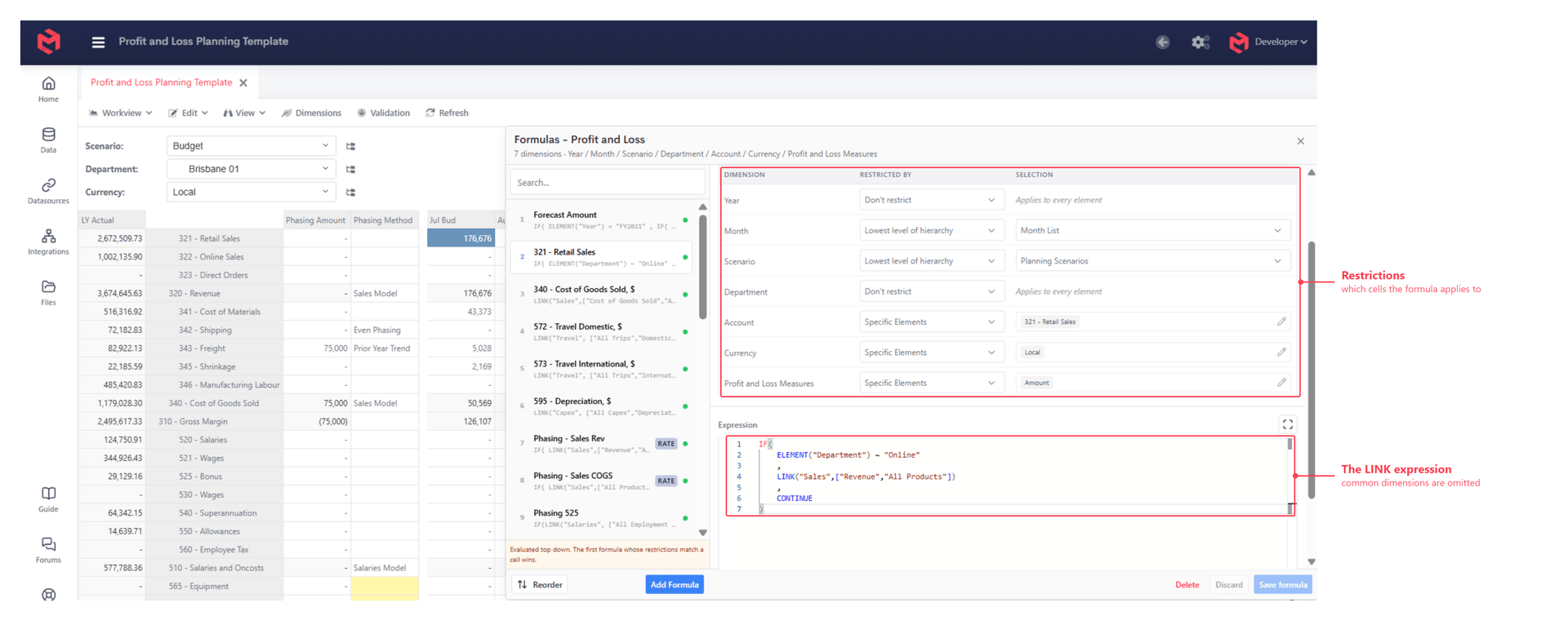
Consider a Profit and Loss cube that takes its online revenue from a separate Sales cube. The formula sits on the "321 - Retail Sales" account, restricted to the "Amount" measure and the "Local" currency so it calculates only the cells it should.
js
IF(
    ELEMENT("Department") ~ "Online"
    ,
    LINK("Sales",["Revenue","All Products"])
    ,
    CONTINUE
)
The LINK names the source cube and only the elements that exist there - the "Revenue" measure and the "All Products" consolidation. "Year", "Month", "Scenario", "Department" and "Currency" are common to both cubes, so they're left out of the call and matched one-for-one against the cell being calculated.
CONTINUE passes any cell that isn't an online department down to the next formula in the list, rather than returning nothing.
Checking a linked value
Right-click the calculated cell and choose Explain Value. The trace shows the formula that produced the number, and a magnifying glass beside the LINK opens the trace for the cell in the source cube - so a value can be followed across the link rather than stopping at it.
See Testing and explaining formulas for the walkthrough.
Related
- Formulas - cube, card and set instruction formulas compared
- References in Formula - choosing between Direct, LINK, SEQUENCE and LINKBY
- LINK References · LINKBY References
- Mappings - the lookup a
LINKBYresolves through - Testing and explaining formulas - tracing a value back to its source