
Navigation within MODLR
The MODLR Gateway is the primary web portal for model design, administration and deployment, accessible at https://go.modlr.co. It replaces what other platforms often split across several separate tools - a development client, an administration console, a scheduling interface, a data integration tool, a security manager - with a single web application and consistent navigation throughout.
Navigation is available on every page of the Gateway.
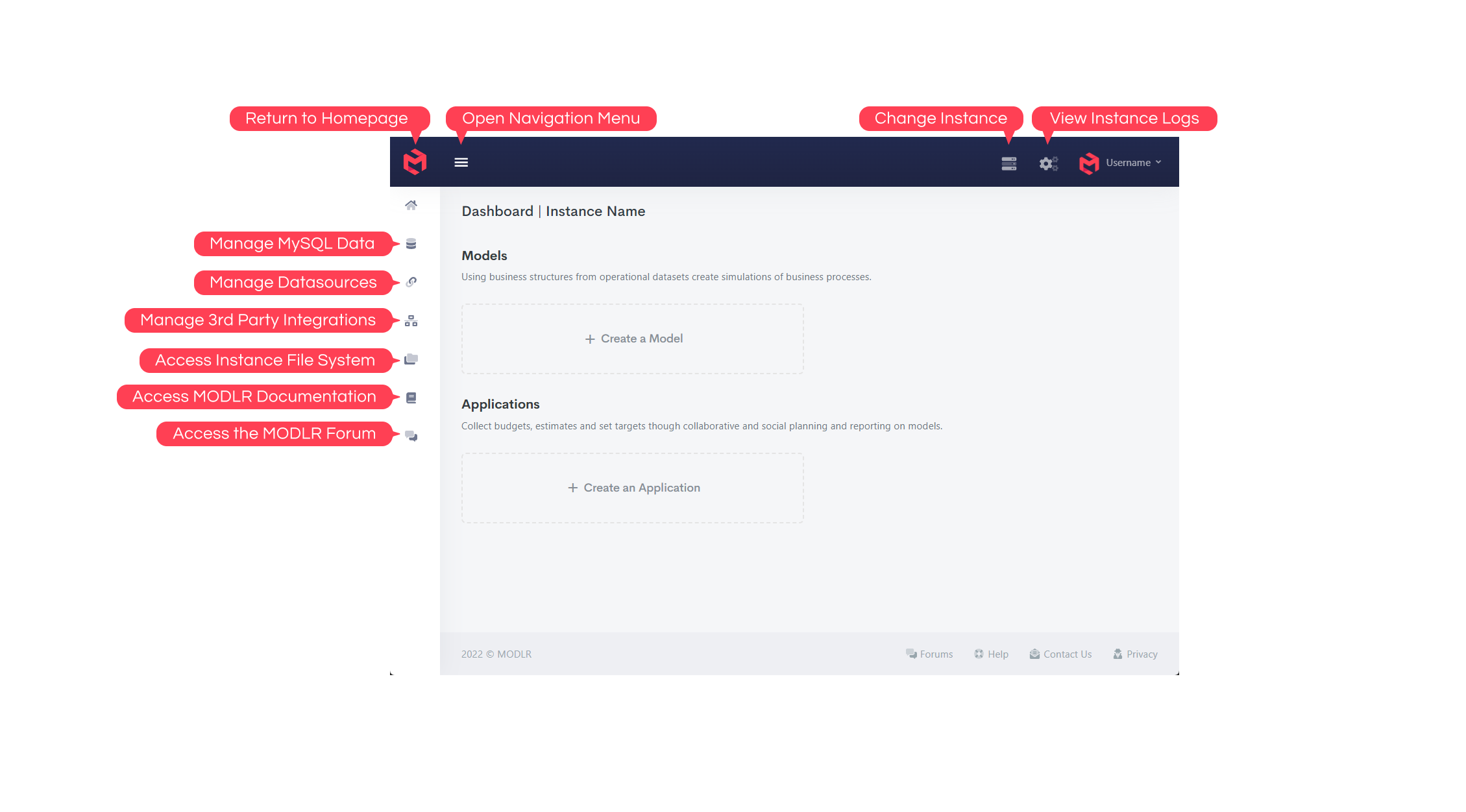
Navigation runs on two levels. The icon rail down the left moves between areas of the instance - Home, Data, Datasources, Integrations, Files, Guide, Forums and Support. The panel beside it lists the objects of the model you're in, grouped as Reporting, Modelling, Processing and Presentation.
Ask AI is enabled on request
Ask AI appears beside Instance Settings once MODLR AI has been turned on for your instance. It isn't enabled by default - submit a request to the MODLR Team to have it switched on.
Which parts of the Gateway a given user can reach depends on their role - Modellers have full access, Analysts see a reduced set focused on Variables, Cards, Workviews, Dashboards and running Processes, and Collaborators don't use the Gateway at all, working instead through an Application, the Excel Add-in, or the PowerPoint Add-in.
How the Gateway is organised
The Gateway is organised around six areas, each addressing a different aspect of working with MODLR:
- Models - the Model Workspace is where Dimensions, Cubes, Workviews, Cards, Processes, Schedules, Tables and Mappings are built and maintained. Most day-to-day modelling work happens here.
- Applications - the Application View is where an Application is configured: who can access it, what they see, and what permissions they have. This is how end users (contributors) interact with a Model without ever seeing the Gateway.
- Integrations and data - the Integrations, Datasource, Datastore and File Manager areas handle everything to do with getting data in and out of the platform.
- Operations - Logs provides visibility into running Processes, finished tasks, server metrics and FTP status; Sandbox provides direct API access for advanced administration.
- Account management - Account Overview handles user administration, instance provisioning, and account-level security.
- Authentication - the Sign In, Invitation and Sign Out flows.
Complete navigation map
| Area | Sub-area | Page |
|---|---|---|
| Home | Main landing page and entry point into the platform | |
| Create Model | Start the model creation workflow | |
| Create Application | Start the application creation flow | |
| Model Workspace | Create & Manage Shortcuts | Create, edit and remove shortcuts (links) |
| Model Workspace | Create & Manage Dimension | Create, edit, audit and remove Dimensions |
| Model Workspace | Dimension Hierarchy Editor | Create, edit, preview and remove Hierarchies |
| Model Workspace | Dimension Alias Editor | Create, edit, preview and remove Aliases |
| Model Workspace | Create & Manage Cube | Create, re-order Dimensions on, and remove Cubes |
| Model Workspace | Create & Manage Variables | Create, edit and remove Variables |
| Model Workspace | Create & Manage Workviews | Create, edit and configure Workviews |
| Model Workspace | Workview Interface | Manipulate and execute Workviews |
| Model Workspace | Cube Formula Editor | Create and edit formulas on the underlying Cube |
| Model Workspace | Validation Editor | Create and edit validations on measures of the underlying Cube |
| Model Workspace | Cube Formula Documentation | Generate a printable document of every Cube formula |
| Model Workspace | Create & Manage Cards | Create, edit and configure Cards |
| Model Workspace | Card Interface | Manipulate and execute Cards |
| Model Workspace | Create & Manage Mapping | Create, edit and configure Mappings |
| Model Workspace | Mapping Interface | Populate Mappings |
| Model Workspace | Manage Model | Configure and administer Model metadata/settings |
| Model Workspace | New Scripted or Visual Process | Create a new Process inside a Model |
| Model Workspace | Scripted Process Interface | Edit and execute Scripted Processes |
| Model Workspace | Visual Process Interface | Edit and execute Visual Processes |
| Model Workspace | Create & Manage Schedule | Set and update a Schedule (a Process run at a given interval) |
| Model Workspace | Create & Manage Tables | Create, edit and configure model Tables |
| Model Workspace | Table Interface | Add and edit fields of a Table |
| Model Workspace | Export Package | Export Model contents as a deployable/shareable package |
| Model Workspace | Import Package | Import a package into a Model |
| Integrations | Integration Details | Browse, add and manage connected external services |
| Integrations | Integration Authorization | Authorize a specific connector for an integration |
| Integrations | Renew Integration | Re-authorize or refresh an expired connector connection |
| Logs | Task Manager | View and manage background tasks/jobs, including Visual and Scripted Processes |
| Logs | Metrics | Choose a server and inspect runtime/server health |
| Logs | Logs | View the service log |
| Logs | FTP | Configure SFTP and FTPS services |
| File Manager | Browse and manage server files | |
| Sandbox | Run API calls directly against the instance | |
| Datastore | Manage Datastore | Work with datastore records and structures |
| Datasource | Manage Datasources | Manage configured datasource connections |
| Datasource | Datasource Drivers | Add and manage JDBC drivers |
| Datasource | Manage Datasource Accounts | Manage Internal Datastore account credentials/access |
| Account Overview | Account Profile | View and edit personal profile details |
| Account Overview | Account Users | Manage users associated with the account |
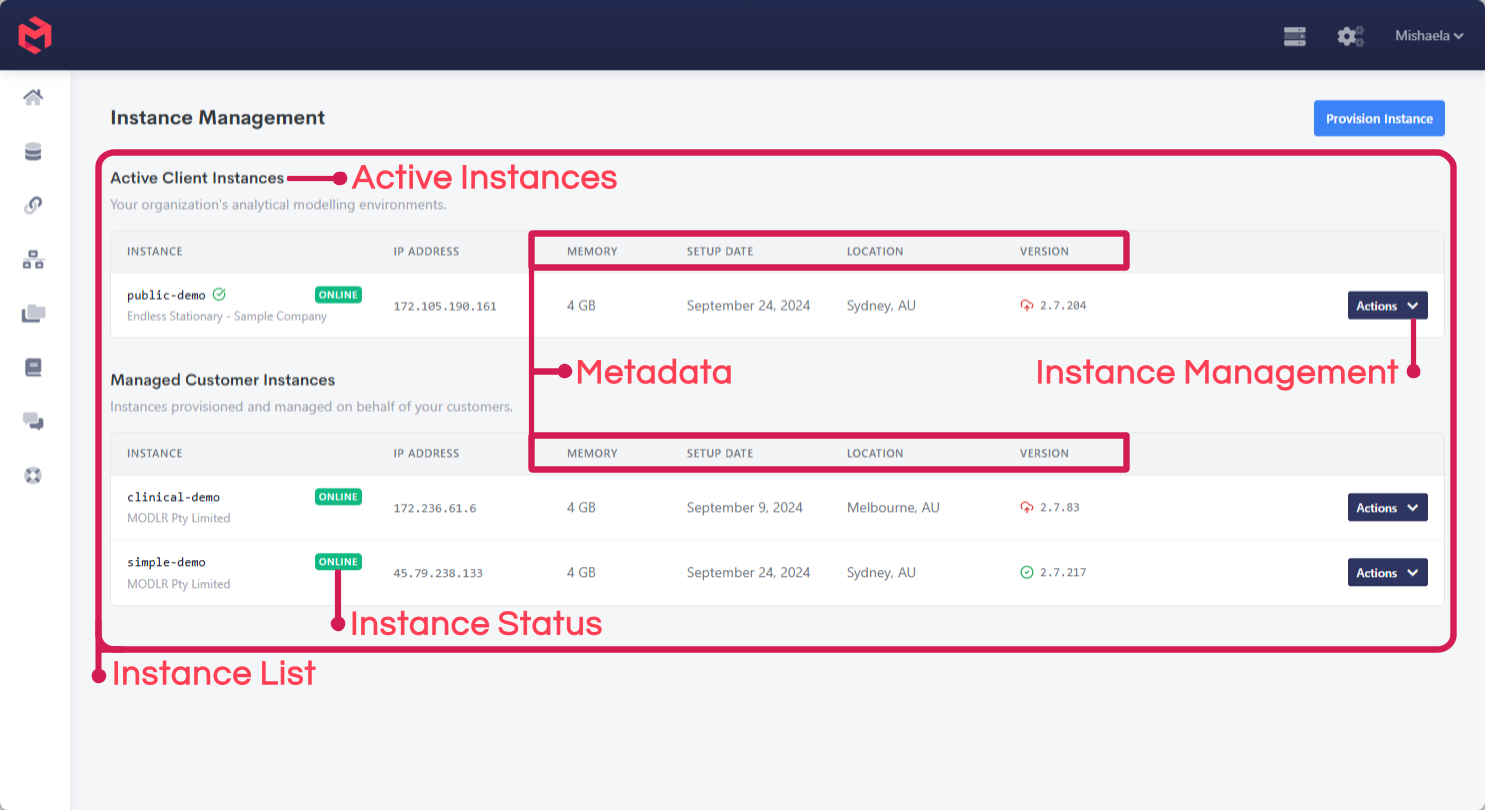
| Account Overview | Account Instances | View and manage provisioned instances |
| Account Overview | Activate Instance | Activate a specific server instance |
| Account Overview | Provision Server | Provision new infrastructure/resources |
| Account Overview | Account Security | Manage account security settings (2FA, password, etc.) |
| Account Overview | Account Notifications | Manage account notification preferences |
| Application View | Manage Contributors | Configure users who can access the Application and their tags |
| Application View | Manage Access Tags | Configure tags and their access controls |
| Application View | Manage Screens | Link screens in the Application to Model content (Dashboards, Cards, Workviews or Custom Pages) |
| Application View | Manage Menus | Configure navigation within the Application |
| Application View | Custom Page Editor | Build and edit custom Application pages |
| Application View | Dashboard Editor | Build and edit app Dashboards |
| Application View | Menu Editor | Build and edit Application navigation menus |
| Application View | Embed Token Management | Create/manage embed tokens and embed access |
| Sign In | Authenticate a user into the platform | |
| Invitation | Accept an invitation and begin account onboarding | |
| Sign Out | End the current user session securely |
A visual tour
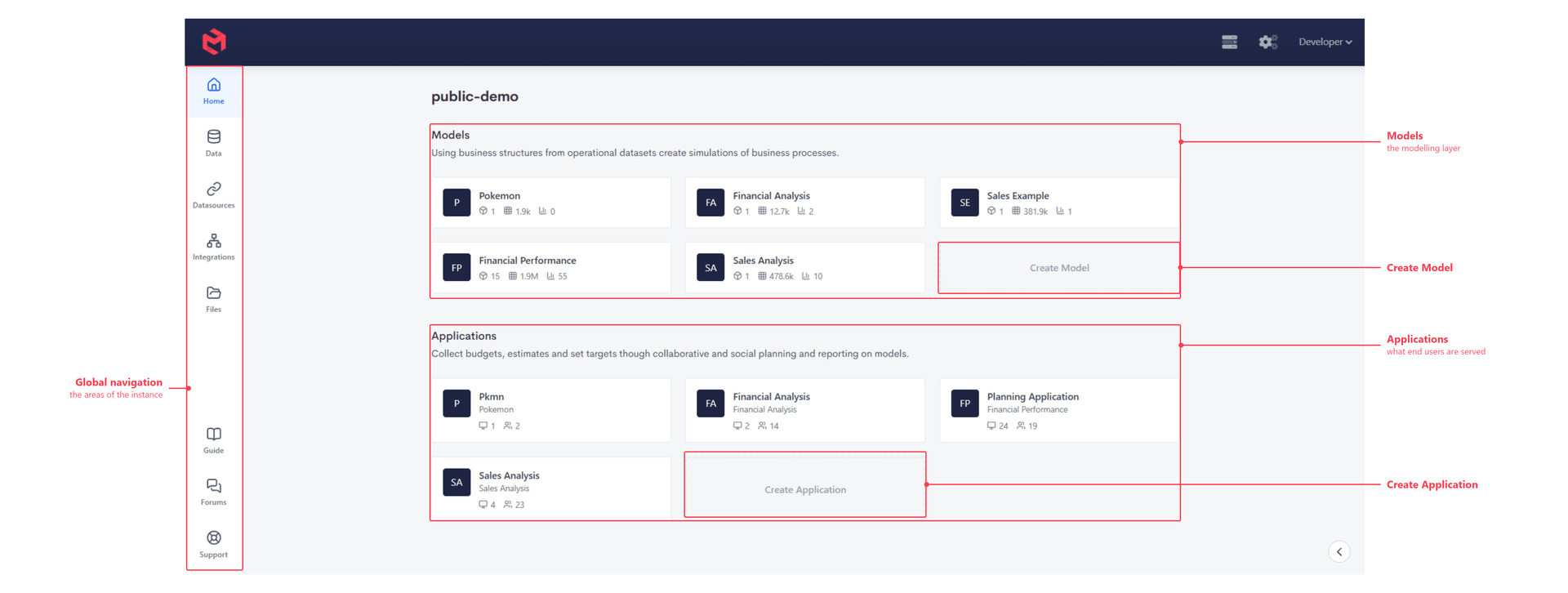
Home
Every Gateway session begins here - open an existing Model or Application, or start creating a new one.
Model Workspace
The Model Workspace is where the majority of model development happens - Dimensions, Cubes, Workviews, Cards, Processes, Schedules, Tables, Mappings and packaging all live under its side navigation.
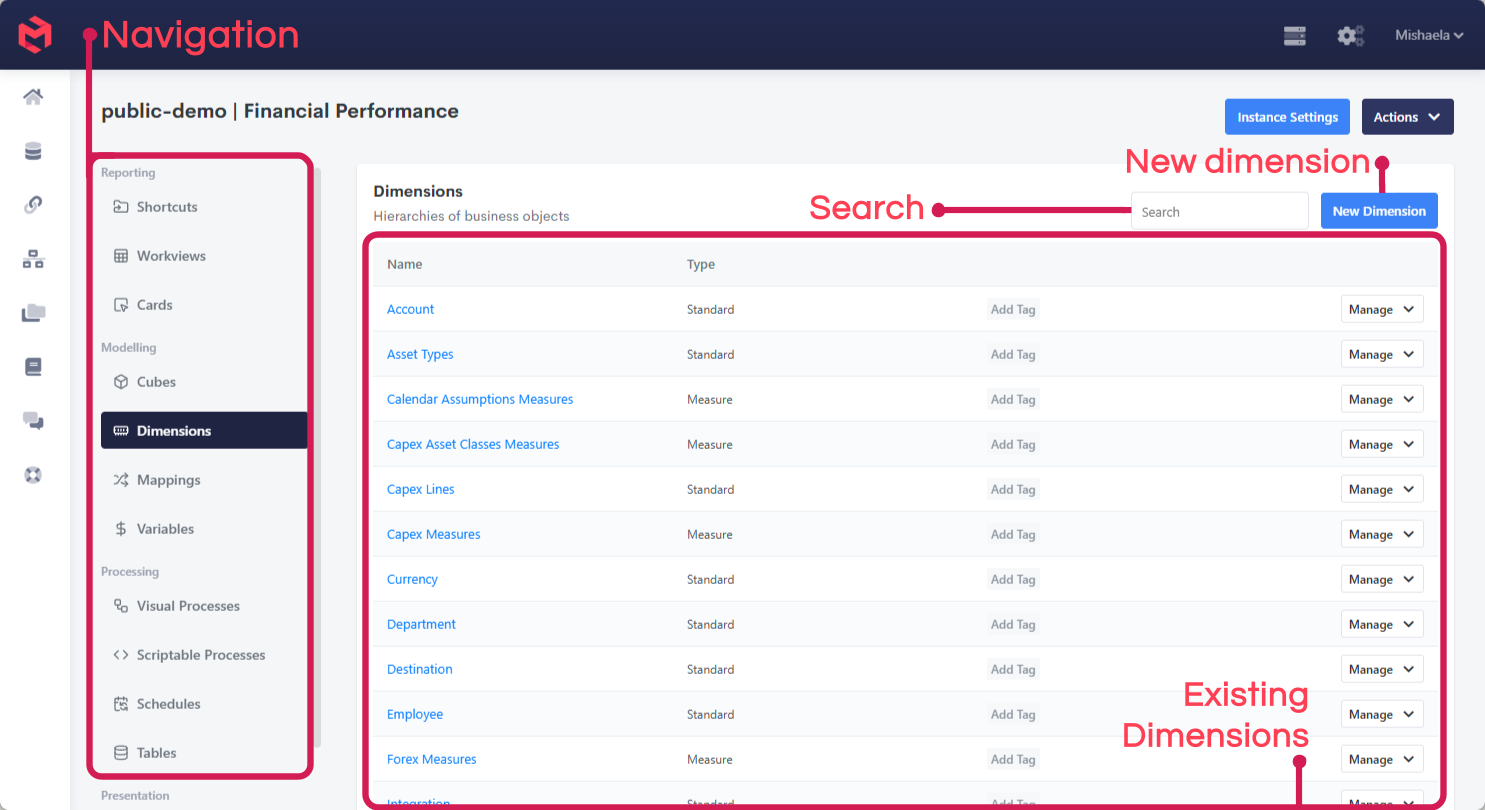
Selecting a type on the left lists the objects of that type; opening one replaces the listing with that object's own editor. Those editors are what the rest of this section shows - each looks quite different, because each is built around a different kind of work.
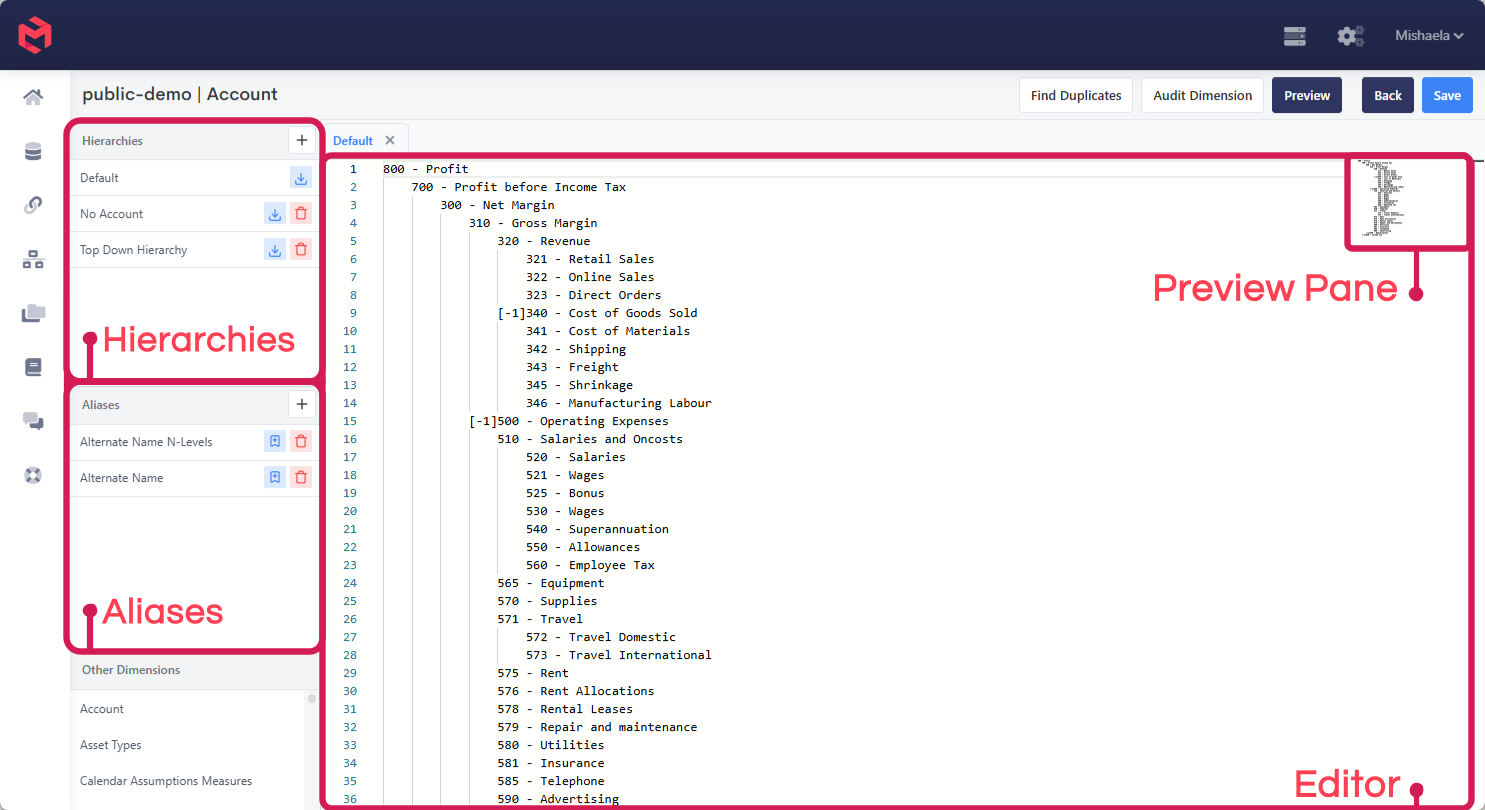
Dimension Editor
Where a dimension's elements, hierarchies and aliases are built and maintained. The hierarchy is edited as tab-indented text, which makes pasting a structure straight out of a spreadsheet practical. See Managing a Dimension Manually.
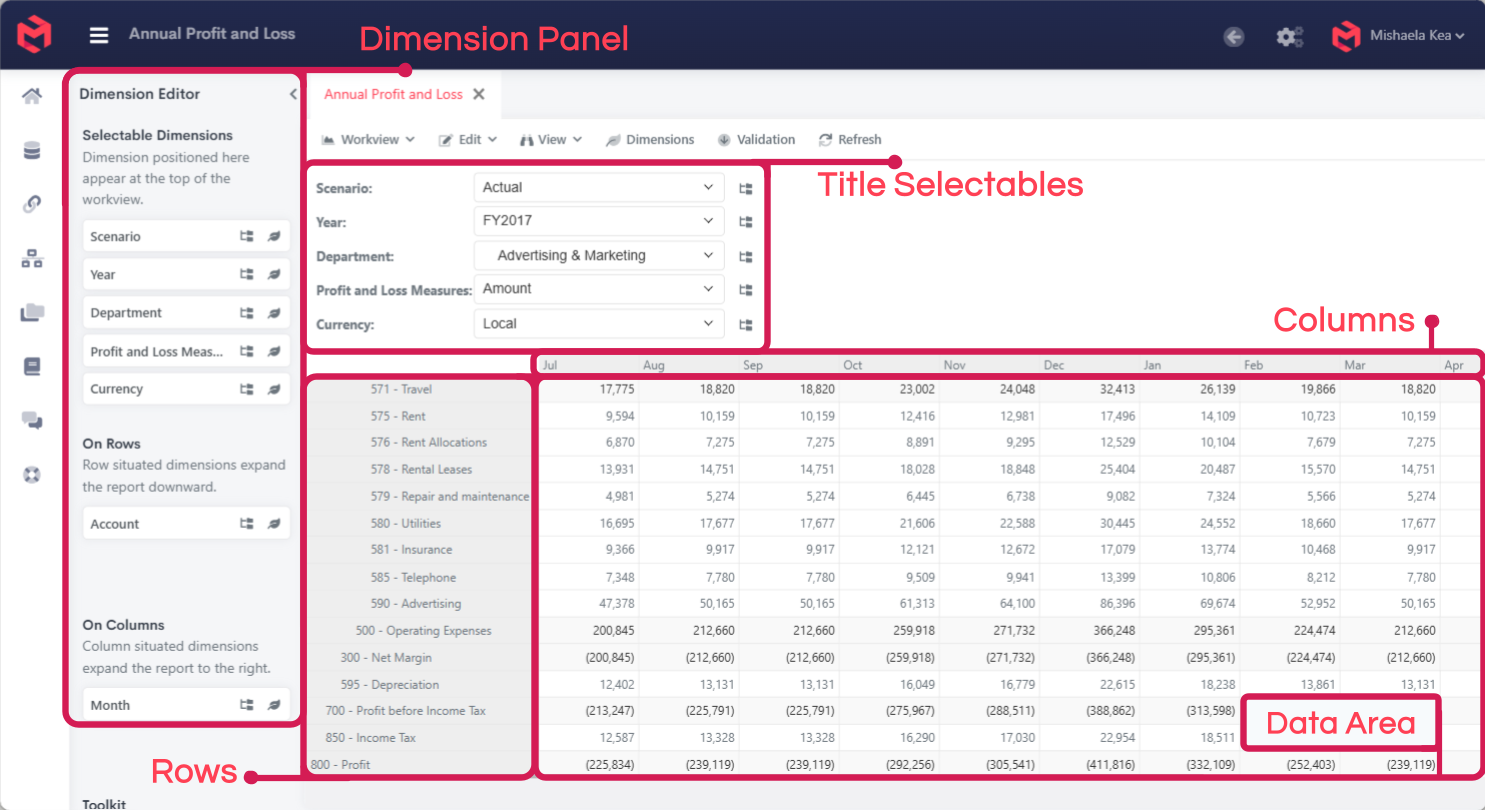
Workview
The grid view onto a Cube - dimensions arranged on titles, rows and columns, with data read and written directly in the cells. See Creating Workviews.
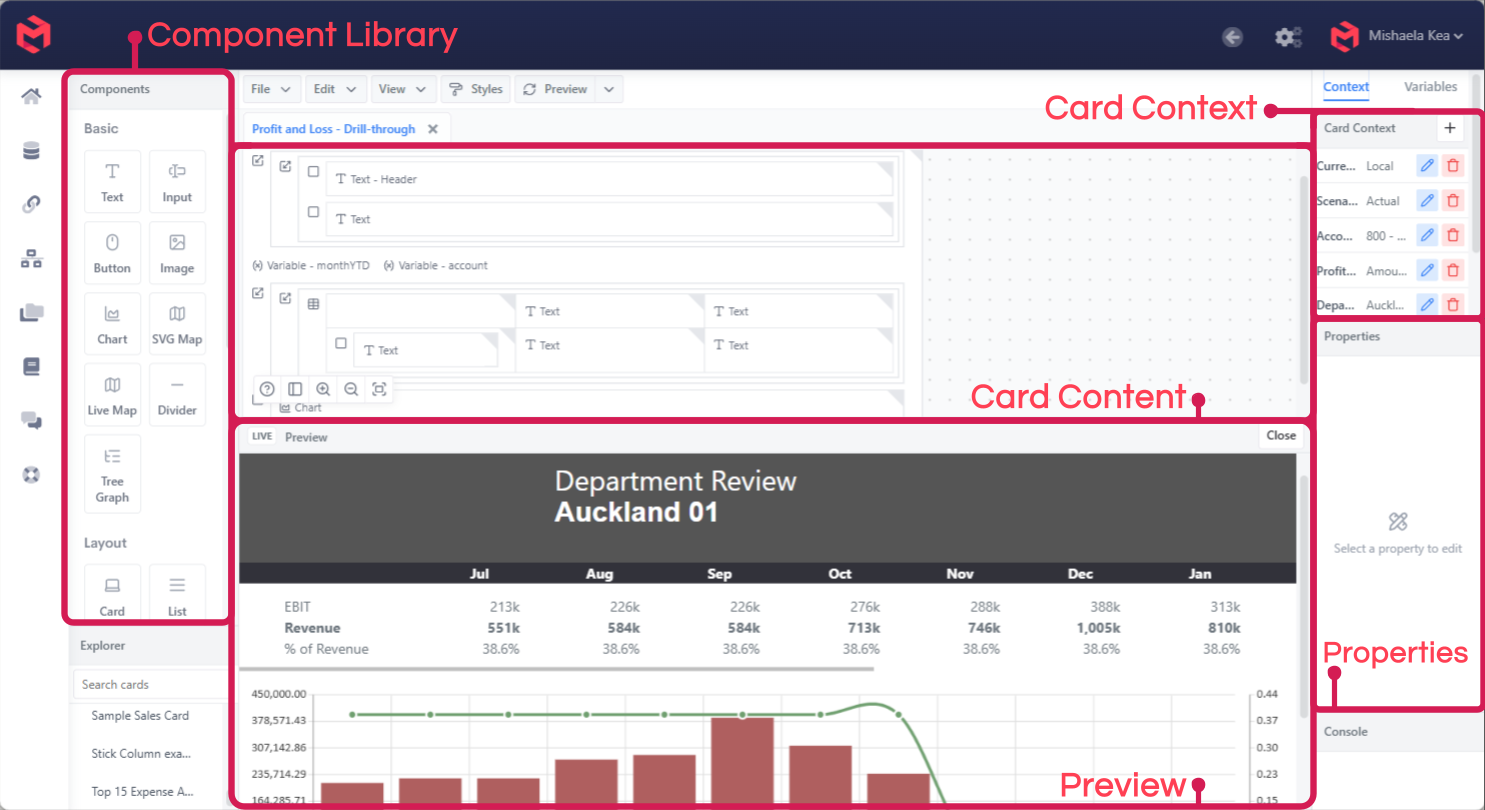
Card Editor
The drag-and-drop report builder: a component library on one side, the card's content in the middle, and the selected component's properties on the other. See the Cards Guide.
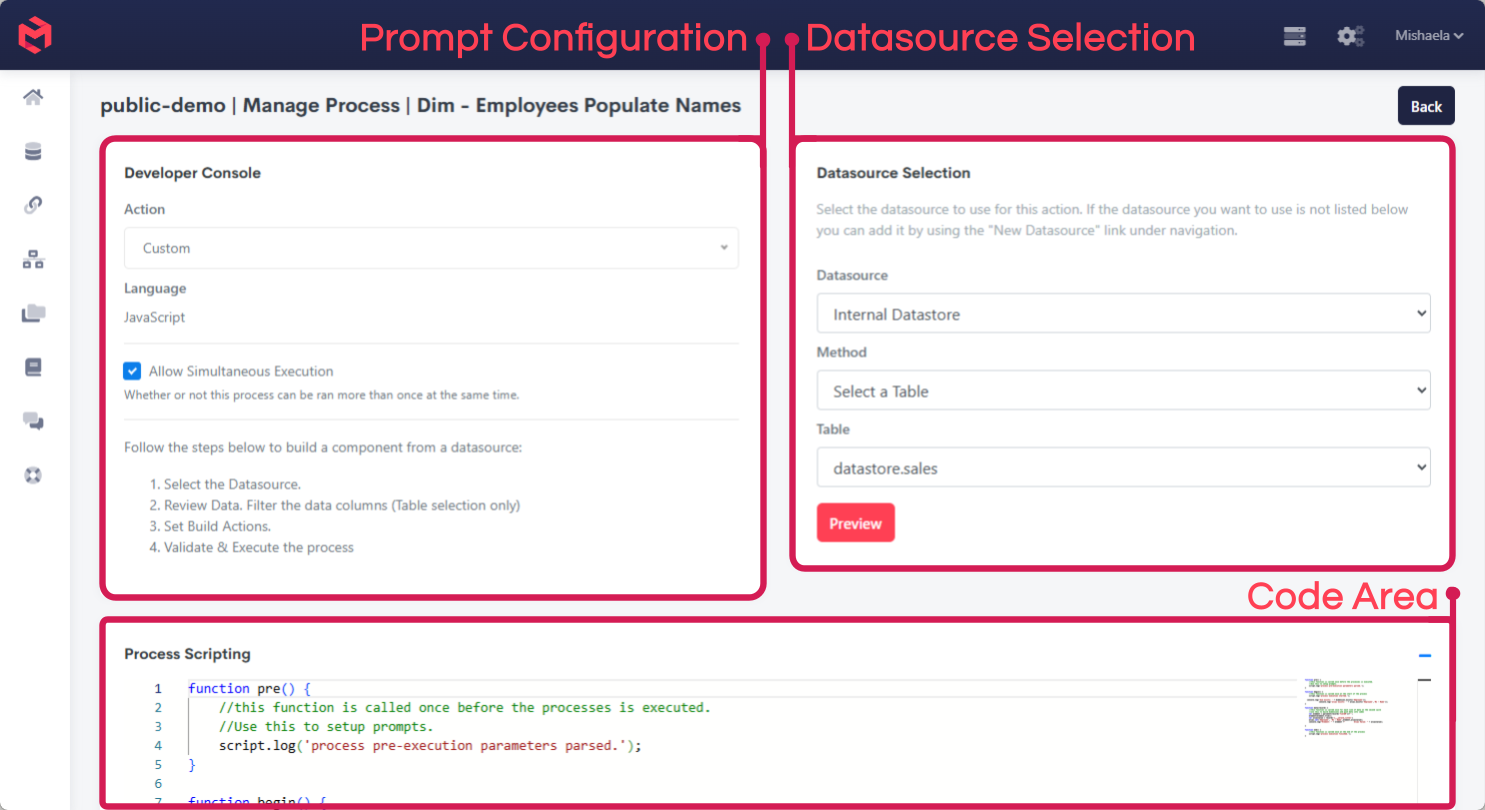
Scriptable Process editor
Process logic written as JavaScript, with the datasource selector and execute controls alongside it. See Scripted Processes.
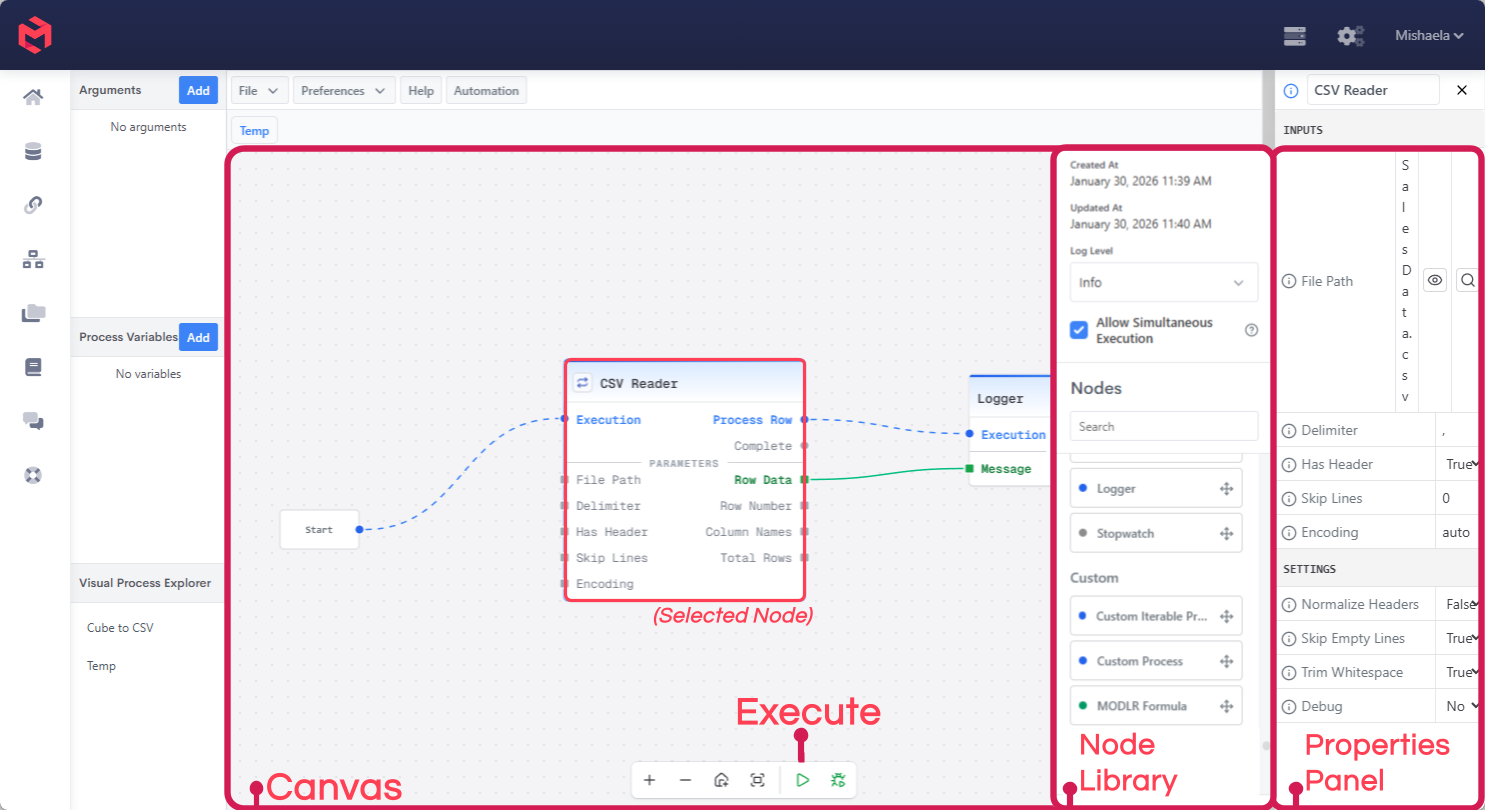
Visual Process editor
The same job as a Scriptable Process, built as a graph of connected nodes on a canvas rather than written as code. See Visual Processes.
Logs and Operations
The Task Manager shows both running and recently completed tasks, and is the first place to check when troubleshooting a failed Process or a slow instance.
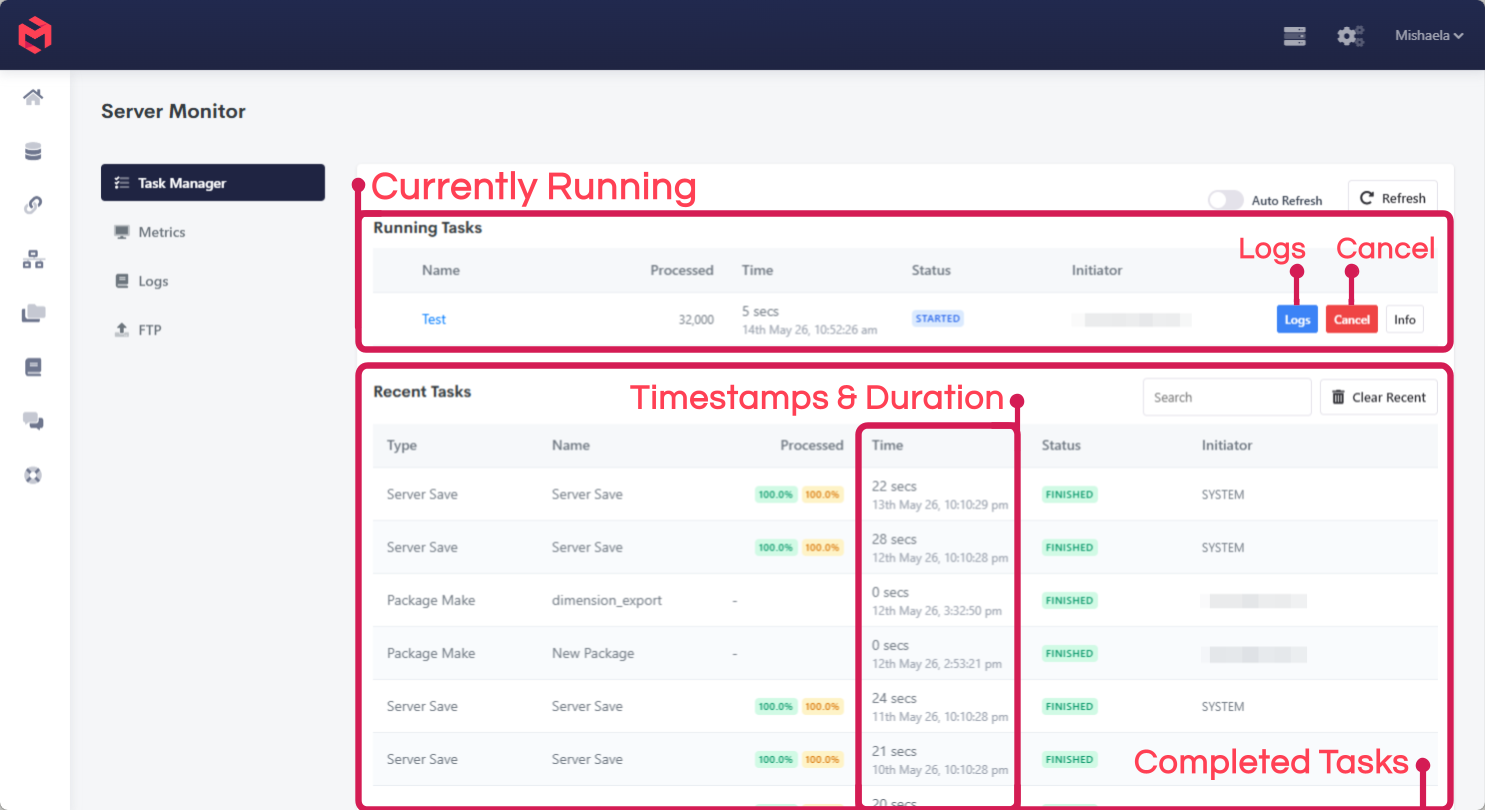
Metrics, the raw service log and the FTP service sit alongside it under the same area - see Logs and Monitoring.
Datasource
The Datasource area manages every connection to an external system, whether the built-in Internal Datastore or an external database reached via JDBC.
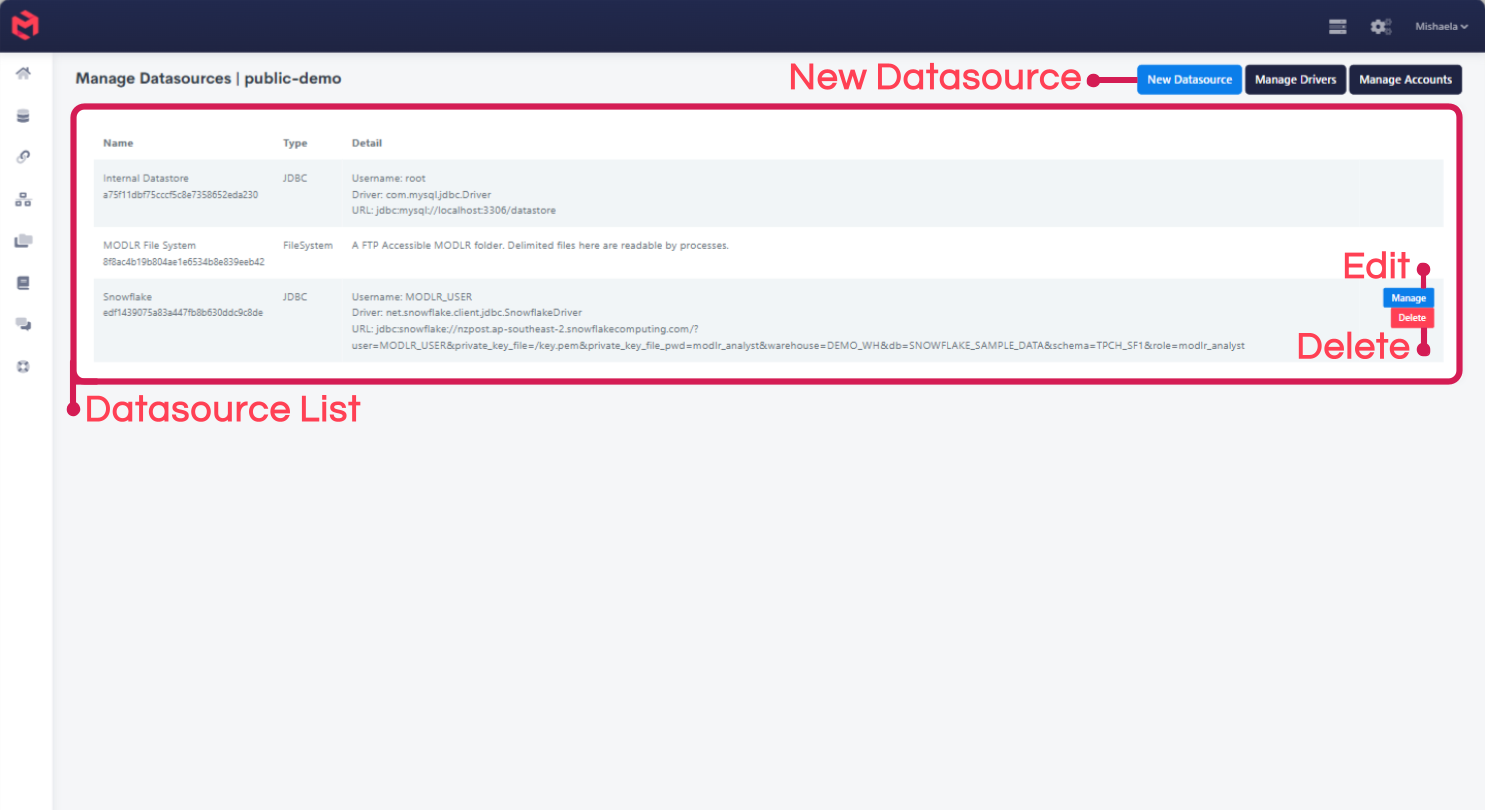
See Datasources for connecting one, and Tables for the Internal Datastore's own tables.
Account Overview
Personal and account-level settings - profile, security, notifications, and instance provisioning - are managed here.
Application View
Applications are configured and maintained here - which contributors can access an Application, what screens they see, what Access Tags govern their permissions, and how they navigate between screens.
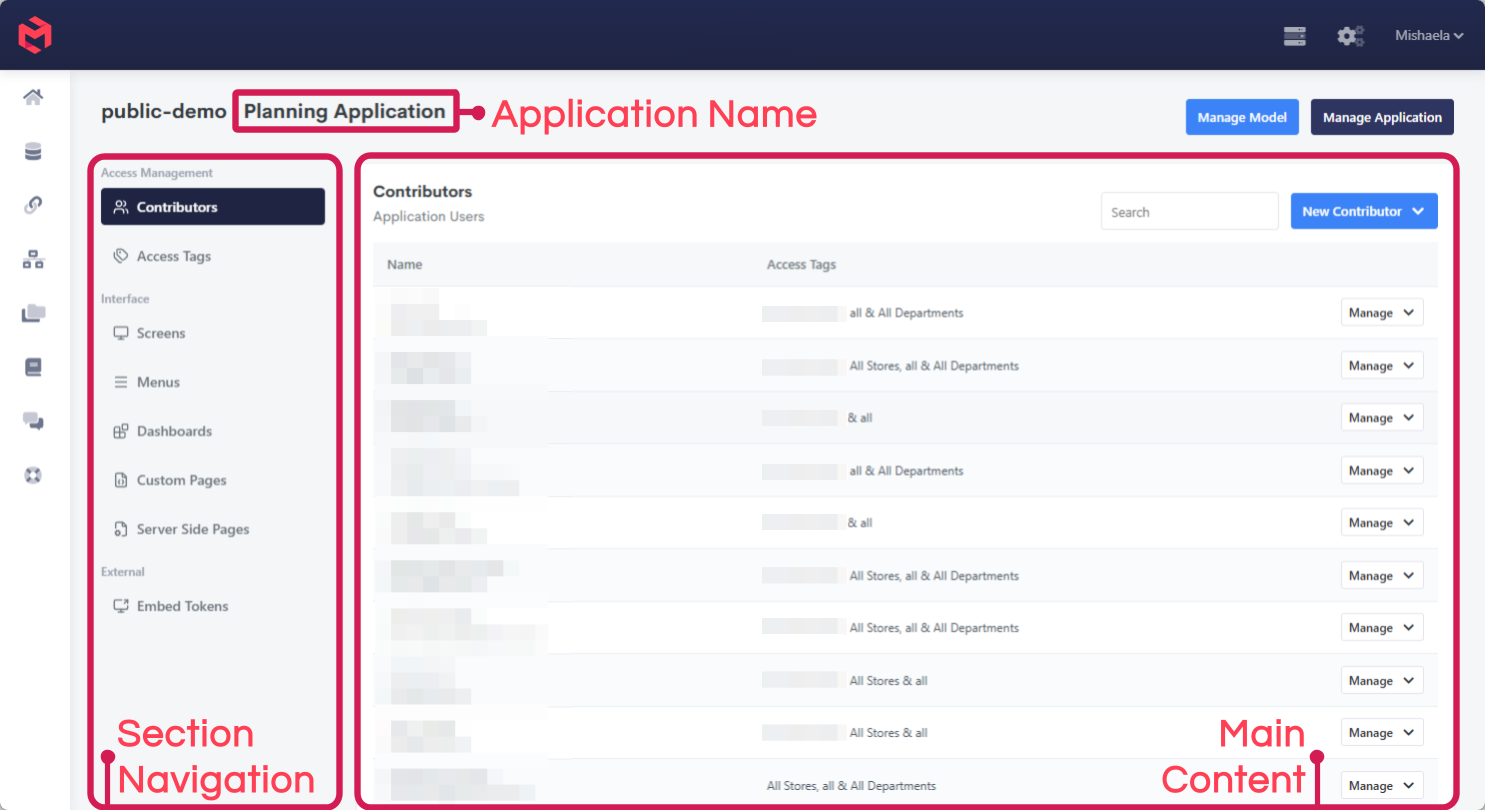
See About Applications for what an Application is made of.