
Screens
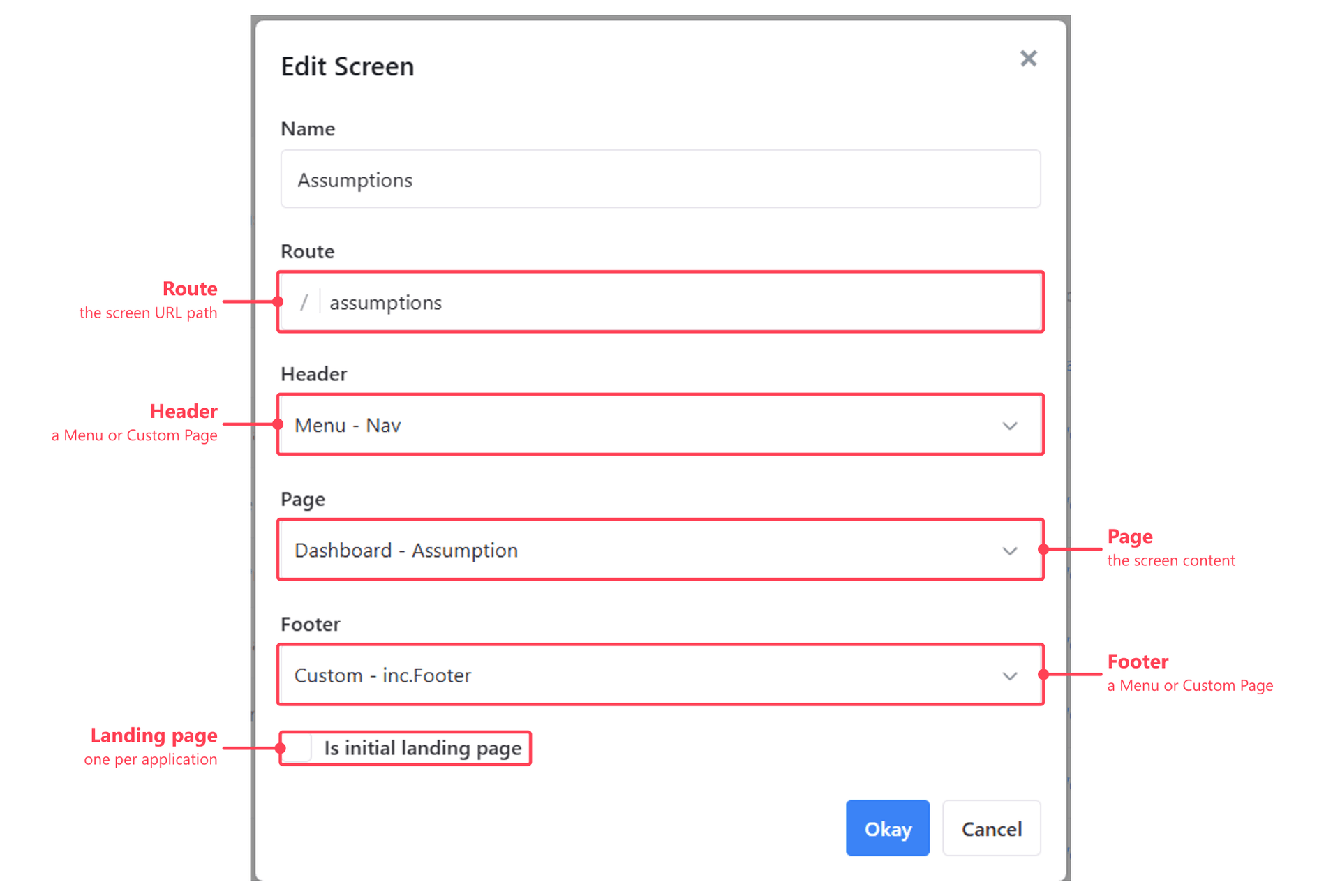
A Screen is a web page on an Application, served at its own route. Every screen is made of three parts:
| Part | Holds | |
|---|---|---|
| Header | A Menu or a Custom Page | Optional |
| Page | The screen's content - see below | Required |
| Footer | A Menu or a Custom Page | Optional |
A screen doesn't own any of this. It references objects built elsewhere, which is why the same menu can head every screen in an application, and the same workview can appear on more than one.
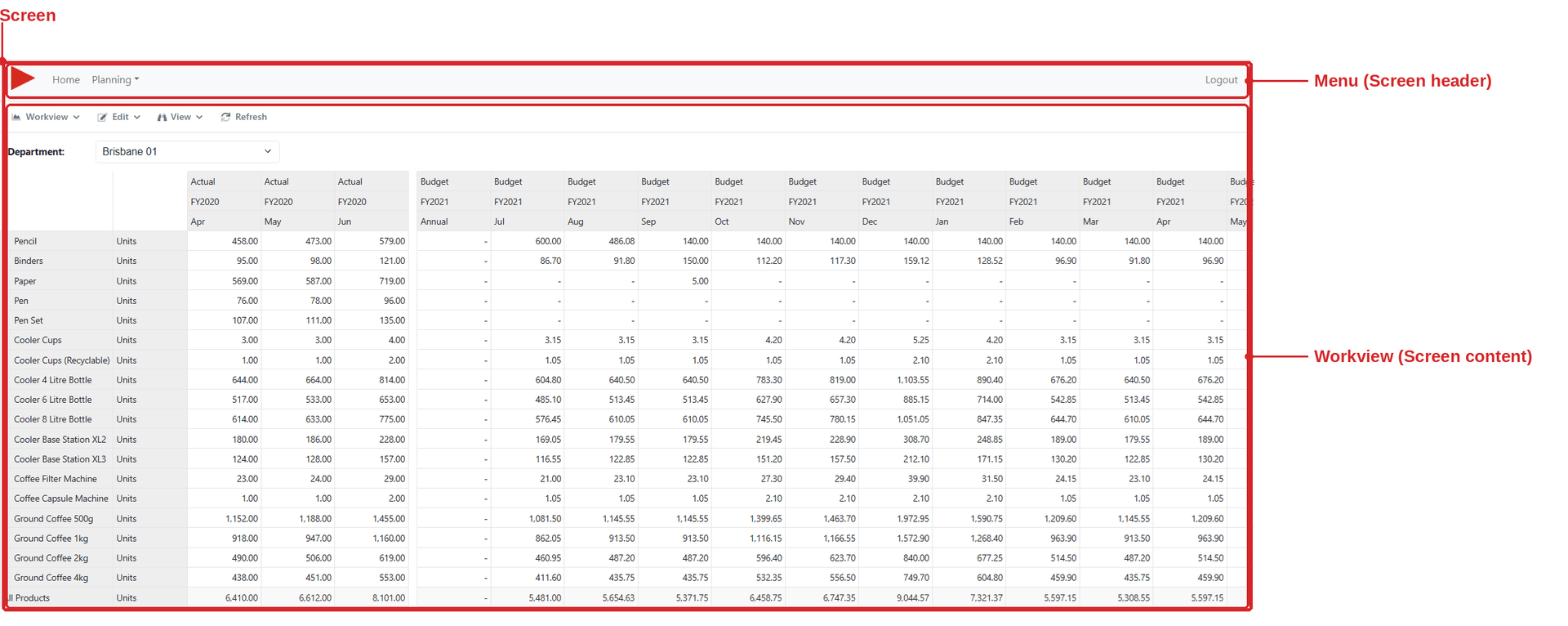
What a screen can display
The Page is the body of the screen, shown between the header and footer. It can be any one of:
| Content | Built in | Documentation |
|---|---|---|
| Dashboard | The application | Dashboards |
| Custom Page | The application | Custom Pages |
| Workview | The model | Creating Workviews |
| Card | The model | Cards in Screens |
A Dashboard is the way to put several things on one screen - a screen's Page takes a single object, so a Card added directly fills the screen on its own.
Users can only reach the screens granted to them by their access tags.
Navigating between screens
Navigation is a separate concern from content, and there's more than one route between screens:
| Route | Where it lives | Best for |
|---|---|---|
| Menus | Attached to a screen as its header or footer | Fixed, application-wide navigation available from every screen |
| Custom Pages | As a header or footer, in place of a Menu | Navigation a Menu can't express |
| Links on Cards | Card components, such as a Button | Contextual jumps from a report into related detail |
| Link To Another Workview Using Formula | A Workview's set instructions | Making row or column headers clickable, per element |
The last two are what turn a report into a drill path: a summary by department where clicking a department opens that department's detail screen, rather than the user going back to the menu and picking it manually.
Both can pass the clicked context through as a query string argument, where the argument name is the dimension's ID - department-detail?6ad83e6275498f152a2d74e1784c4c21=Sales. Values are wrapped in URLENCODE so names containing spaces or ampersands survive.
The destination doesn't read the URL itself. The value is written to the browser's local storage against that dimension, and selectables bound to the same ID populate themselves from it - always for a Workview's title selectables, and for a Card Selectable when its Persist property is set to Yes.
Setting the homepage of an application
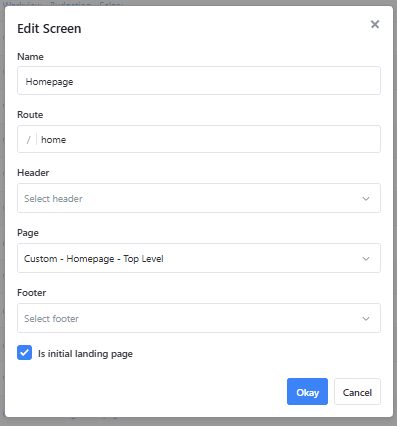
One screen per application can be marked as the initial landing page, using the checkbox of that name on the screen itself. This is the screen a user lands on when they open the application without a path.
| The user opens | They land on |
|---|---|
https://example.modlr.cloud | The screen flagged as the initial landing page |
https://example.modlr.cloud/example-route/ | That specific screen, after signing in |
Because a path-specific URL survives the login redirect, a link to a particular screen can be shared directly and will still deliver the user to that screen rather than to the landing page.
The Home helper link in a Menu resolves to whichever screen carries this flag, rather than to a fixed URL.
Creating a new Screen in your application
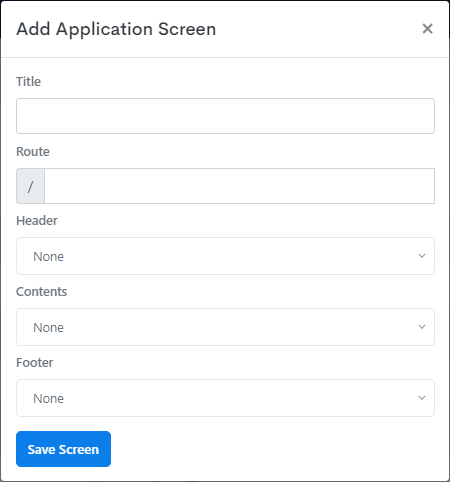
- Name - names the screen in the Gateway at
go.modlr.co. It does not affect what the screen shows. - Route - the URL path of the screen, appended to the application's own path (shown as a fixed prefix in the dialog). If your application is accessed at
https://example.modlr.cloud, this screen is reached athttps://example.modlr.cloud/*route*. - Header* - a Menu or a custom page to show above the content. A header usually contains the application's navigation bar.
- Page - the screen's content: a Dashboard, Custom Page, Workview or Card. Shown between the header and footer when those are defined. Cards appear in this dropdown prefixed with
Card -. - Footer* - a Menu or a custom page to show below the content. A footer usually contains Copyright text, Contact Us, Addresses for Support, etc.
*Optional
A completed screen brings the three parts together - here a Menu as the header, a Dashboard as the page, and a Custom Page as the footer:
Before a screen is accessible to the front-end, it first needs to be added to an access tag.