
Formula Syntax
To add a new formula, right click on a cell within a workview and select Edit Formula
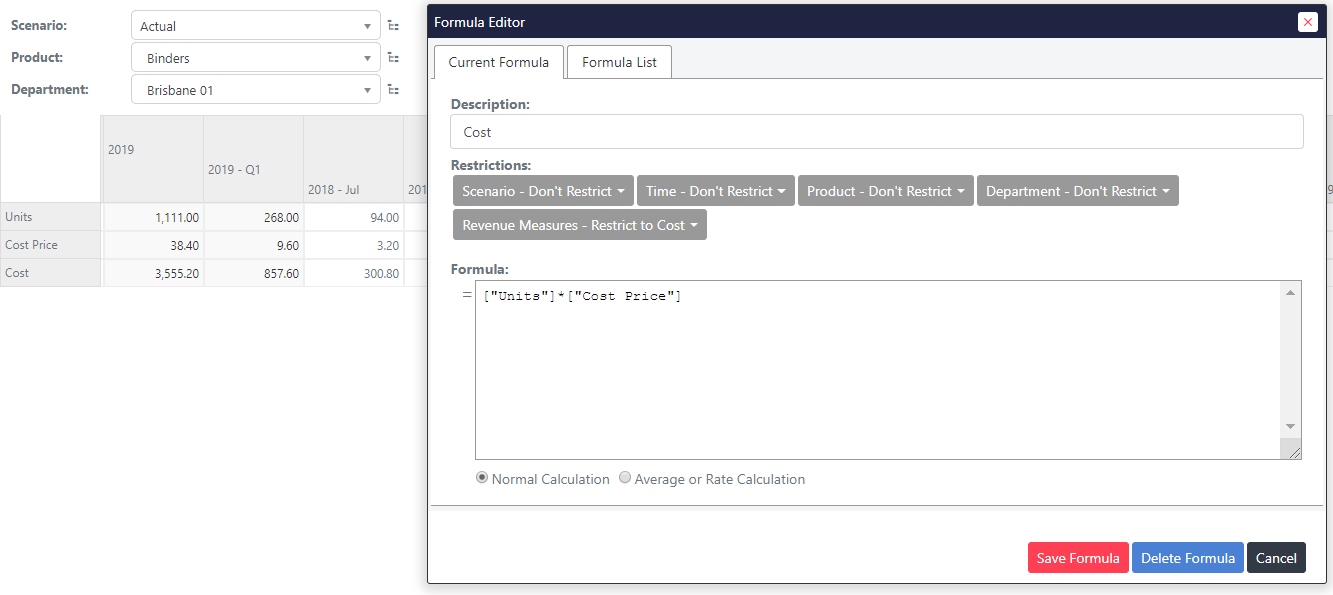
The Formula editor is part of the Workview editor within the MODLR Gateway. Formulas are evaluated top down, and the first one whose Restrictions match a cell wins.
The syntax guidelines are:
- Reference a relative cube location using square brackets and double quotes around elements. Commas can be used to include multiple dimensions in the reference.
- Function names should be in capital letters.
The full list of workview functions can be found within the online documentation.
Checking a formula
The expand icon on the Expression header opens the editor full screen, where a formula can be validated and test-evaluated before it is committed - and where the evaluation Trace is read.
See Testing and explaining formulas for the full walkthrough, including Explain Value on a cell in a report.
Related
- Formulas - cube, card and set instruction formulas compared
- Writing a Cube Formula - building the formula itself
- Testing and explaining formulas - Validate, Test formula, Trace and Explain Value
- References in Formula - choosing a reference type