
Creating a Dimension Manually
Dimensions can be created and maintained manually using the various frontends of the platform.
Creating a new Dimension in Gateway
To create a new Dimension using the Gateway frontend.
- Navigate to the Model page.
- Navigate to the Dimensions section and click on New Dimension.
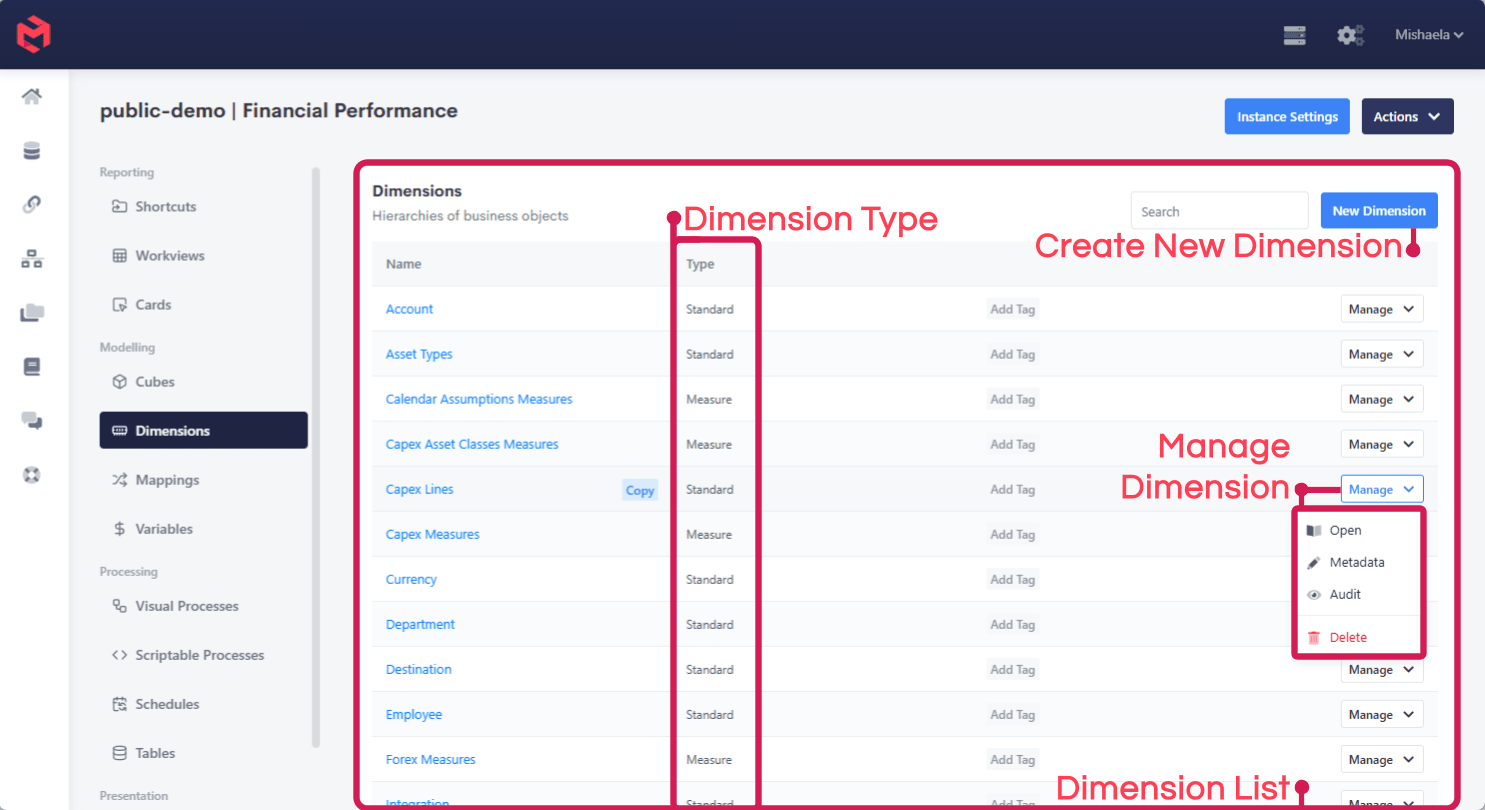
- Enter a Dimension name and type.
Create Dimension Form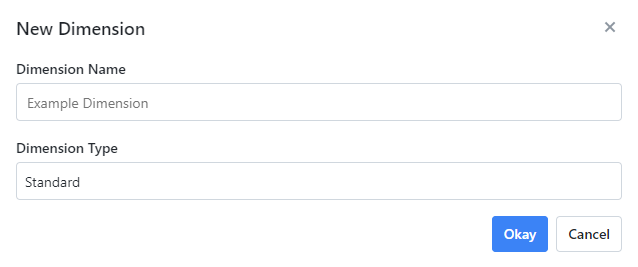
- Clicking Okay will create a new dimension in the model. You can then open this dimension to manage it's hierarchies, aliases and elements.
Managing Dimension Contents
Clicking Manage and Open on an existing dimension within the model page will open the Dimension Manager for the selected dimension.
When editing a hierarchy MODLR provides a text area and interprets tab depth to define the tree of elements. This works well when copying and pasting hierarchies from MS Excel workbooks.
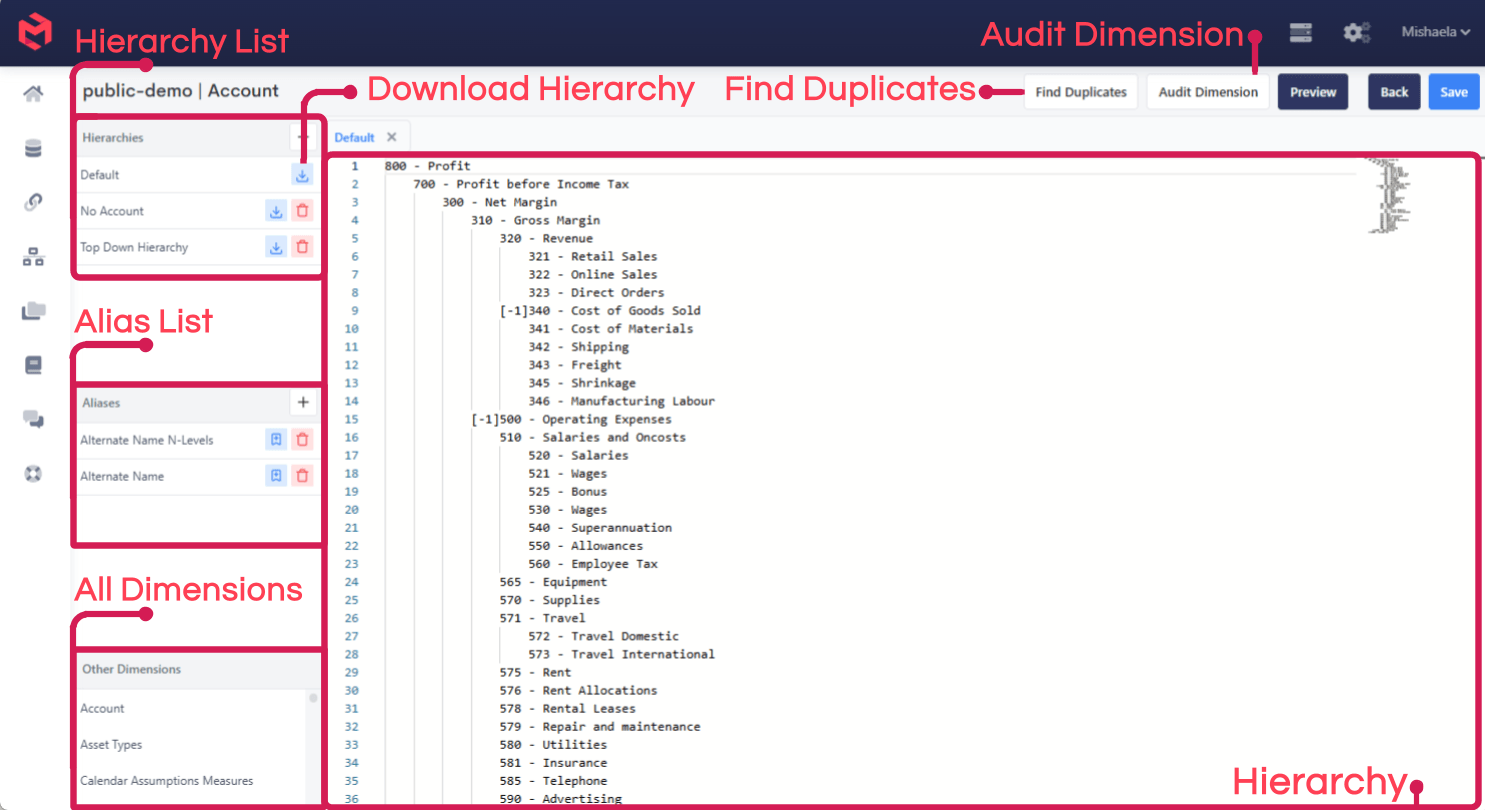
See Managing a Dimension Manually for the full editor, and Elements for the [s] and [-1] modifiers available in the text editor.