
Accessing MySQL Directly
The MySQL instance which comes with each MODLR instance can be accessed directly using 3rd Party software. To do this it is necessary to create a new database user account on the MODLR Instance
- Click on your account name (in the top right corner of the screen).
- Click Manage Account
- Make sure the active MODLR Instance is the instance with the intended database.
- Navigate to the Settings Tab
- Under Add Datastore User give the new account a name and click Add Account.
You should now be able to use the account username and password provided along with the MODLR Instance IP address (accessible on the Application Servers tab) to connect to the Database.
Connecting from MySQL Workbench
With the account created, set the connection up in MySQL Workbench:
- Click the + icon next to MySQL Connections.
- Give the connection a name - this is local to you, so make it identifiable.
- Set Hostname to your instance address, which takes the form
your-instance.modlr.cloud, and leave Port as3306. - Enter the username and password of the datastore account you created.
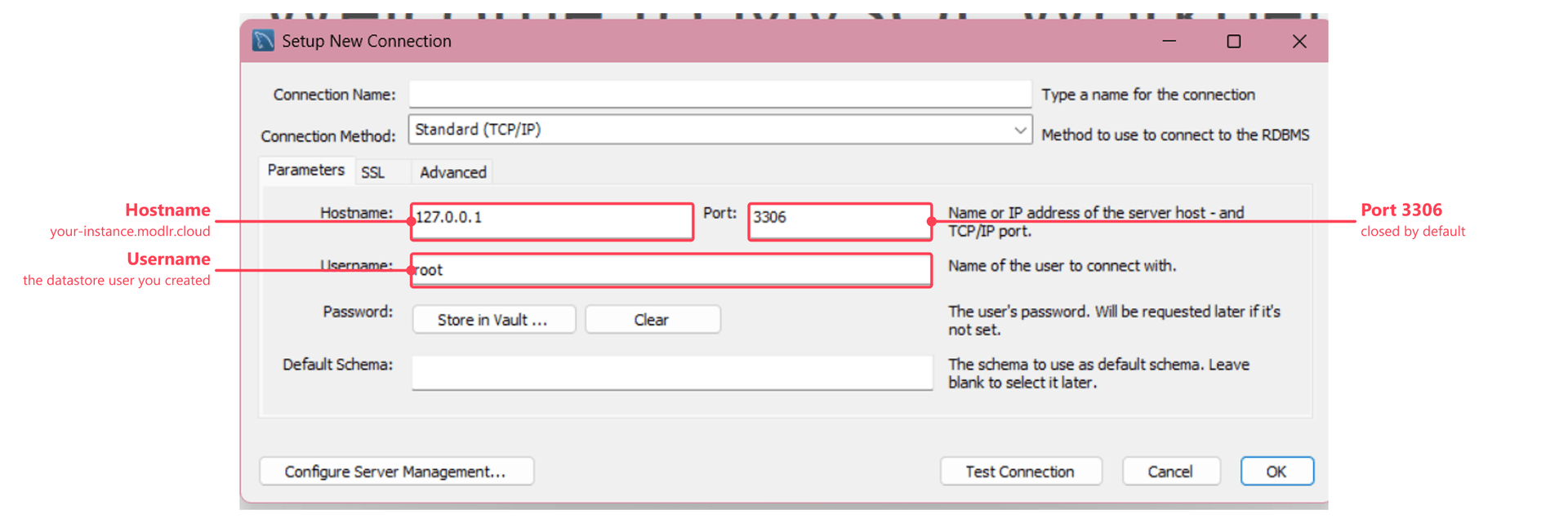
Test Connection checks it before you save. A connection that hangs or times out here usually means port 3306 hasn't been opened for the instance yet.
Opening the port
As part of MODLR's compliance requirements, port 3306 is blocked by firewall by default, so direct connections won't succeed until it's opened. Submit a request to the MODLR Team to have port 3306 opened for your instance.