
About Applications
An application is a curated section of a single Model. Applications provide users with a set of screens which assist in directing the user through a business function such as a Budgeting Round, Profitability Analysis or Regular Report.
Where the Gateway exposes the whole model to whoever builds it, an application exposes a deliberate subset of that model to the people who need to use it - the screens relevant to their task, scoped to the data they're permitted to see.
Who reaches an application
An application is the only way a Collaborator ever reaches MODLR - through the Thin at the instance URL, the Excel Add-in, or the PowerPoint Add-in. Modellers and Analysts can reach an application too, and are subject to the same access rules when they do.
Access is decided in two independent layers:
- Access Tags decide whether a user can open a given screen at all.
- Instance Security decides what they can see and do once inside it, against the cubes, dimensions and elements the screen is built from.
A user can therefore hold a tag for a screen and still find parts of it blank. See Screen access vs. Instance security.
An application's structure
A model can hold more than one application, and an instance can serve several applications from the same Thin. Within one application:
- Screens are the pages users open, each at its own route. A screen is a header, its content, and a footer.
- The content is a Dashboard, Custom Page, Workview or Card - the first two built in the application, the last two in the model.
- Menus provide the fixed navigation between screens, attached as a header or footer.
For the full list of object types an application contains, see Application Objects.
Managing an application
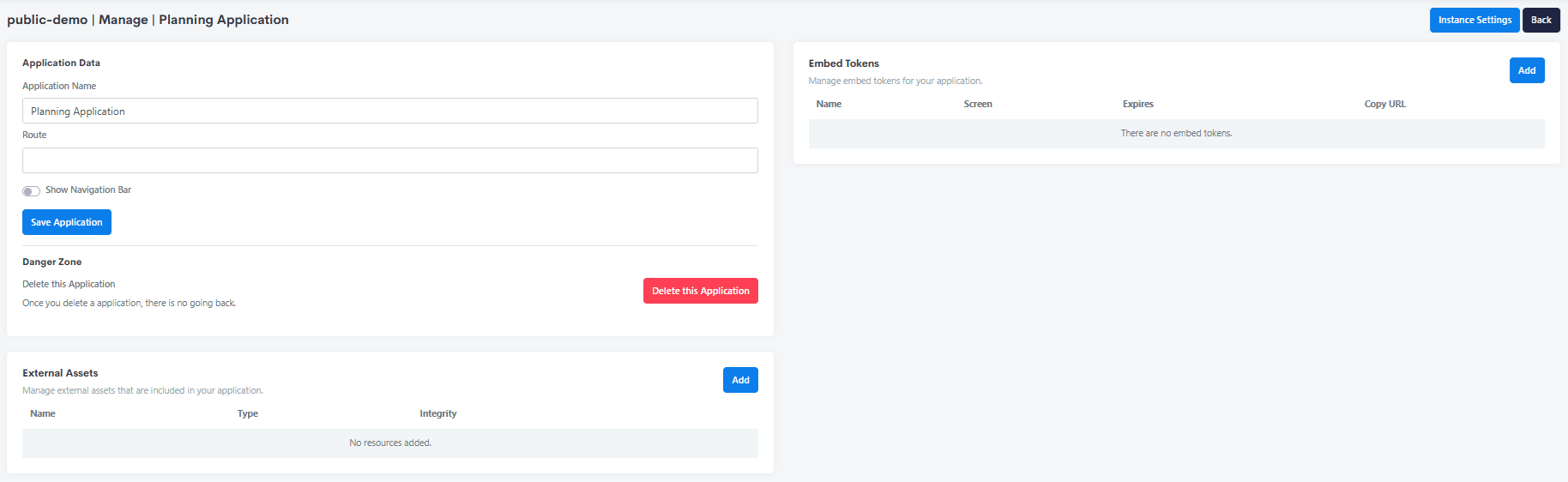
An application's own settings live on its Manage page, separate from the objects it contains.
| Setting | Purpose |
|---|---|
| Application Name | The application's name in the Gateway. |
| Route | The path segment the application is served under. See Routes and multiple applications below. |
| Show Navigation Bar | Whether MODLR's default navigation bar is displayed. Turn it off when the application supplies its own navigation through a Menu or a Custom Page header. |
| External Assets | Third-party JavaScript and CSS to include in the application - see External Assets. |
| Embed Tokens | URLs giving access to a single screen without a login - see Embed Tokens. |
Deleting an application
The Danger Zone's Delete this Application is not recoverable. Screens, Menus, Dashboards and Custom Pages belong to the application and go with it - though Cards and Workviews, which live in the model, are unaffected.
Routes and multiple applications
A model can hold several applications, and an instance can serve applications from more than one model, all from the same Thin. Since they share a hostname, each application needs a distinct route so their screens don't collide.
The usual arrangement is to leave the primary application's Route empty and give every other application one:
| Application | Route | A screen at screen-url is served from |
|---|---|---|
| Primary | (empty) | example-instance-name.modlr.cloud/screen-url/ |
| Secondary | secondary-application | example-instance-name.modlr.cloud/secondary-application/screen-url/ |
So the primary application answers at the bare instance URL, and each additional application is namespaced beneath its own route. Two applications sharing a route - or both left empty - leaves their screens ambiguous, so give every application after the first a route of its own.
This also applies to the initial landing page: the flagged screen is what loads at the application's route, meaning the primary application's landing page is what a user reaching the bare instance URL sees.
Related
- Application Objects - every object type inside an application
- Creating an Application - creating an application in the first place
- Screens - the pages an application serves
- MODLR Architecture - how applications sit beneath a model and instance