
CubeGet
Retrieves data from a cube based on the intersection of elements.
See FAQ for details about function runtime ordering.
js
CubeGet(applicationName, cube, ...elementNameN)Parameters
applicationName- The name of the application through which to access the model.cube- The identifier of the cube.elementName1- An element for each dimension within the cube which when used, finds a specific intersection.elementName2- An element for each dimension within the cube which when used, finds a specific intersection.elementNameN- An element for each dimension within the cube which when used, finds a specific intersection.(optional)
Example
js
CubeGet("Performance Management", "General Ledger", "Actual", "2020", "Jan", "Revenue", "Marketing", "Amount")This will return the value at the provided intersection for the cube "General Ledger".
Reading a CubeGet in a worksheet
In practice the arguments are cell references rather than literals, so one formula can be filled across a range and each cell resolves its own intersection.
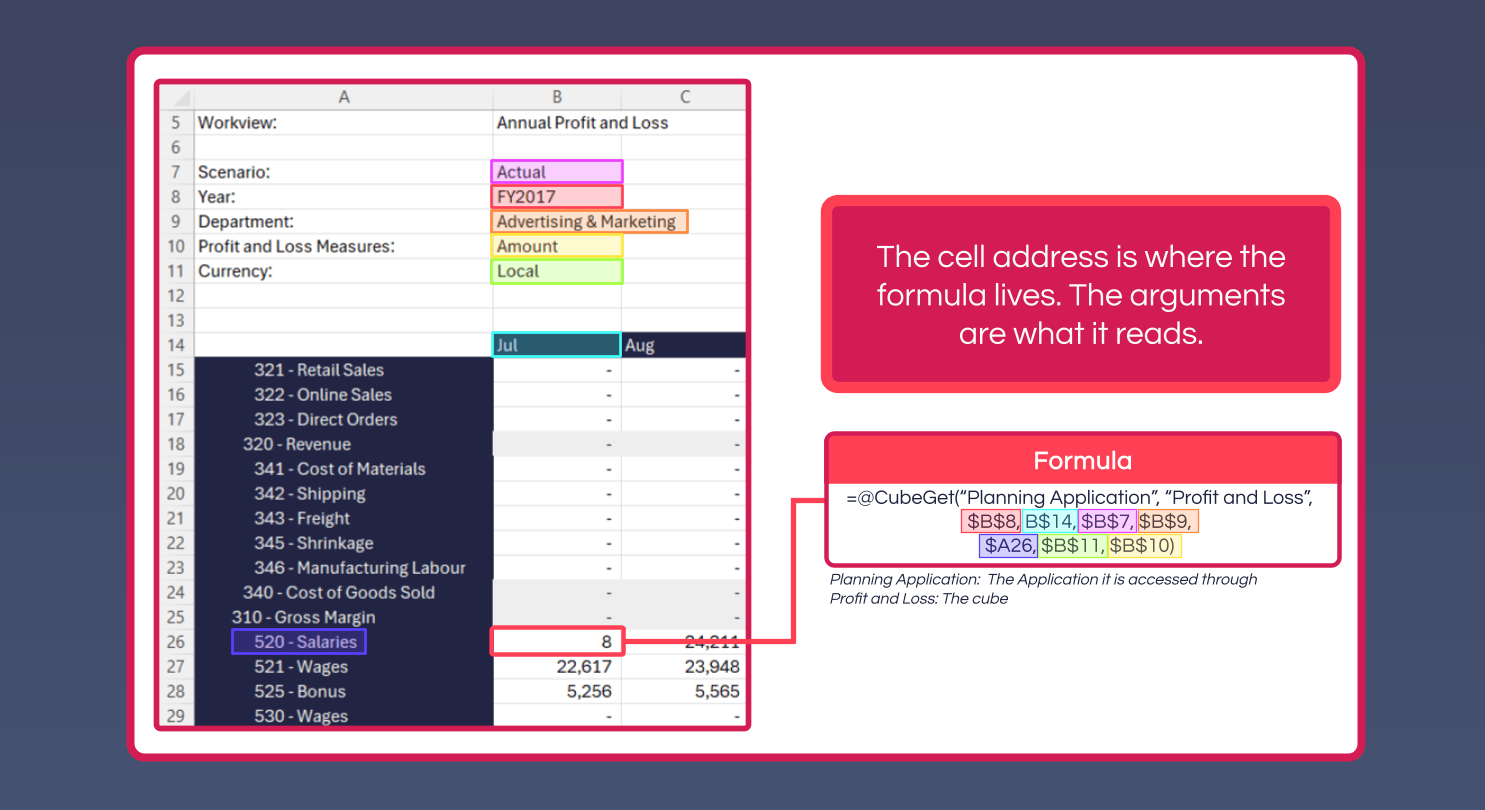
The cell address is where the formula lives; the arguments are what it reads. In the example above:
"Planning Application"- the Application the model is accessed through"Profit and Loss"- the cube- The remaining arguments point at the selections above the grid (
$B$7-$B$11, absolute so they don't shift), plus the account from the row ($A26) and the month from the column header (B$14)
Mixing absolute and relative references this way is what lets a single formula be filled across the whole report: the selections stay pinned, while the account and month follow the cell.
Build the formula once
Create Formula on the ribbon builds a CubeGet from the model structure rather than requiring the argument order to be typed by hand.