
Installation and Setup
Get started with MODLR for PowerPoint by following this quick and easy installation and configuration guide.
Operating Requirements
Before diving in, make sure your system is prepared to maximize your experience:
- Operating System: Windows 10 or 11
- PowerPoint Edition: Microsoft PowerPoint x64 bit edition
- .Net Framework Runtime 4.8 or newer
TIP
Only Windows platforms are supported at this time.
Step by Step Guide
Download the MODLR for PowerPoint installer
Download the installer for the latest version of the MODLR for PowerPoint plugin. The latest version can be found here. The install file will be downloaded as a zipped folder.
Close PowerPoint
Before starting the installation process, close any windows of PowerPoint you may have open on your device.
Extract the installer
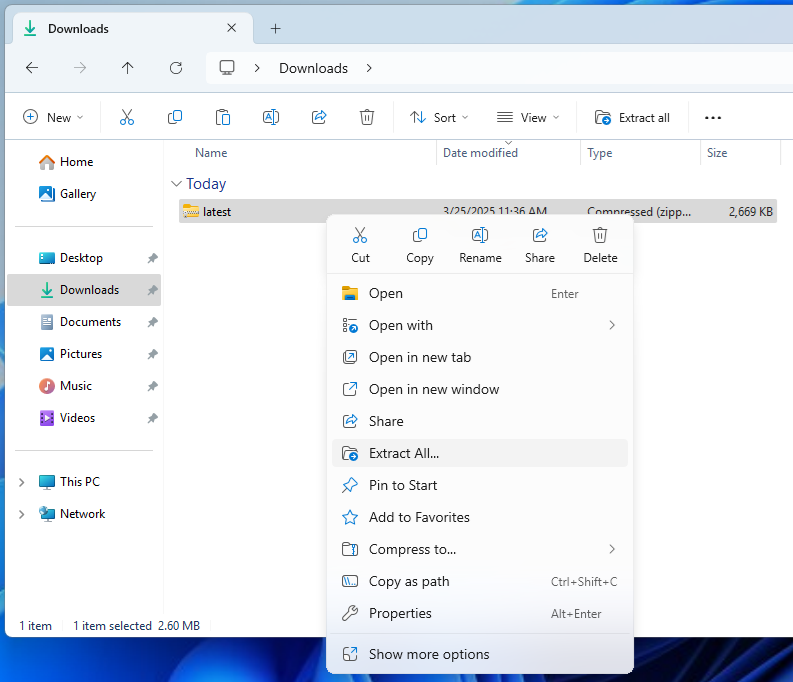
The installer executable needs to be extracted from the compressed folder. Right-click on the downloaded zipped folder, and click 'Extract All...'.
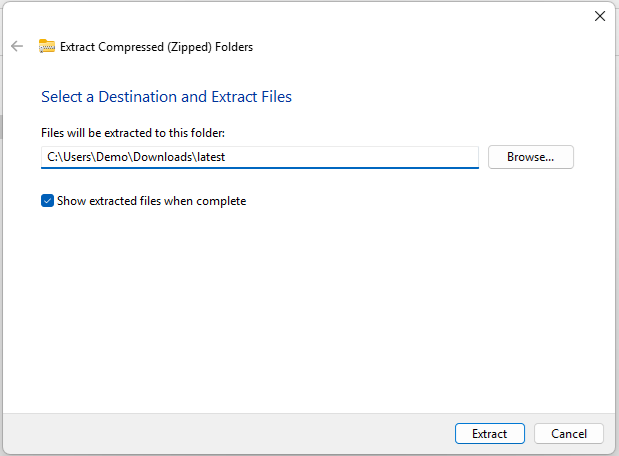
This will open a window confirming where the folder should be extracted to. Click the 'Extract' button to extract the install files in the same location as the download.
The installer should now be accessible.
Run the install file
Open the extracted folder, and double-click on the setup.exe file to start the installation wizard. This will bring up the installation wizard window.
WARNING
If you have a previously installed addin, you may be prompted with a message to uninstall the existing version prior to installing the new one.
TIP
Running the installation may require administrative permissions to run depending on your workplace policies. If you do not have administrative rights on your device, you may need to contact your system administrator.
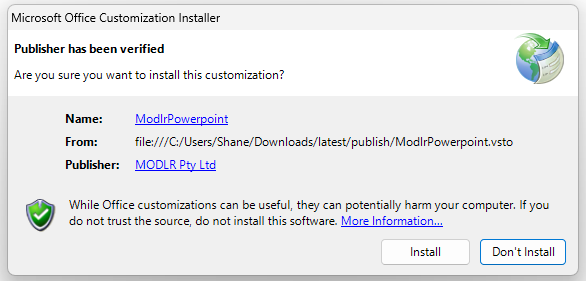
Install the plugin
Click 'Install' and follow the instructions in the installation window until it is complete.
Open PowerPoint
Open PowerPoint on your device, you should now see the MODLR tab near the top, next to the Help tab.

WARNING
If the MODLR tab is not visible at this point, the plugin will need to be enabled through PowerPoint.
Enable MODLR for PowerPoint plugin
Open PowerPoint Options
Click 'File' in the top-left corner of your PowerPoint window, then click 'Options' at the very bottom of the window. This will open the PowerPoint Options window.
Manage PowerPoint Add-ins
Click 'Add-ins', and then click the 'Go...' button next to the 'Manage: COM Add-ins' drop-down.
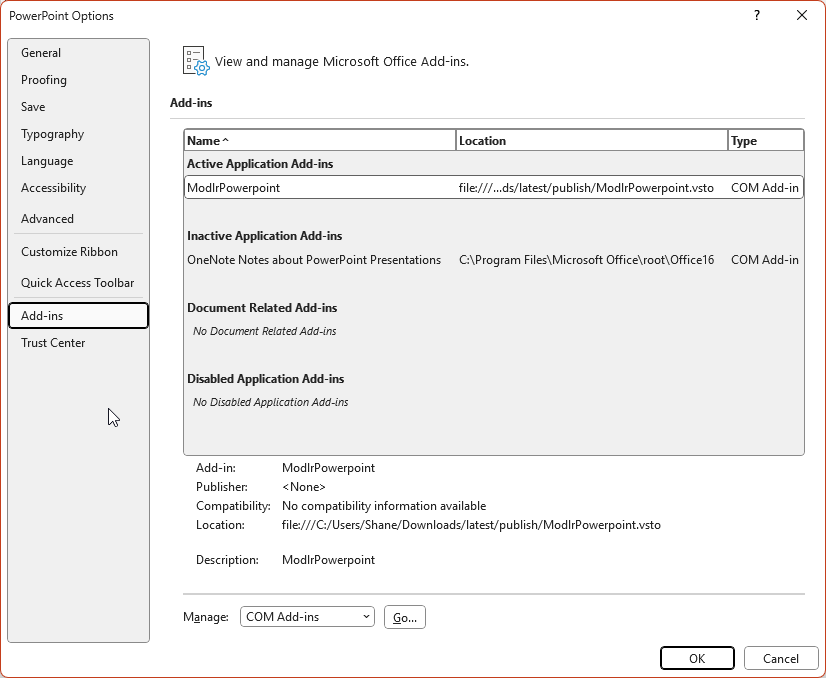
Enable PowerPoint plugin
This will bring up a small Add-ins window. Make sure that 'ModlrPowerpoint' is checked, and then click 'OK'.
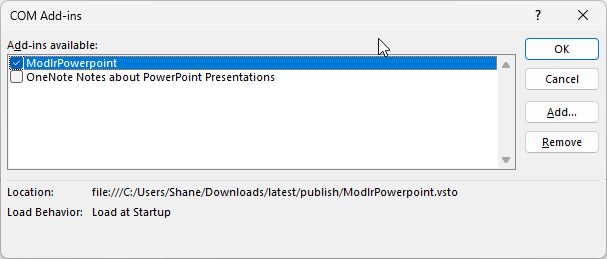
The MODLR for PowerPoint plugin should now be installed, enabled, and ready to use.
Updating
In the settings window for the MODLR PowerPoint Add-In there is a button to check for updates. If you are using an older version of the add-in you will be a prompted to download the latest version. Alternatively the latest version can be downloaded manually here. After downloading the latest version of the MODLR PowerPoint Add-In, follow the installation and setup instructions above to complete the update.
Installation troubleshooting
If you have any issues using the plugin, especially after an update to Windows or PowerPoint, please try a clean installation of the plugin. This can be done by uninstalling the plugin then running the setup file again.
Still having issues?
Contact us through the support portal.